A WordPress SEO checklist saves you from the most common mistakes, because most sites don’t have an SEO problem. Instead, they have a “nobody checked the basics” problem.
We see it all the time on client sites. For example, search engines get accidentally blocked, no sitemap is submitted, or a 4MB hero image slows everything down. Meanwhile, three SEO plugins fight each other in the background. However, none of this is hard to fix, as long as you know where to look.
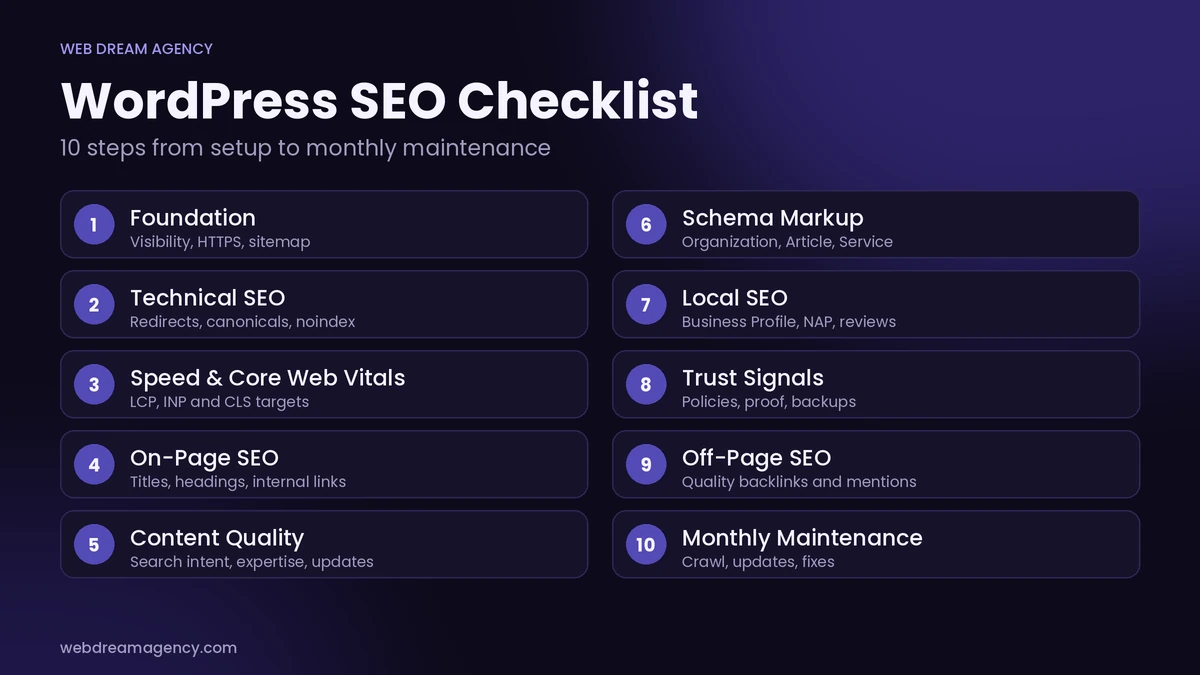
This WordPress SEO checklist follows the order we use when we audit a site. First, work through the foundation. Then move on to technical SEO, speed, on-page SEO and content. Finally, set up a monthly routine so your results keep improving. If you want the wider strategy first, read our guide on how to improve WordPress SEO.
1. Foundation: The First Items on Your WordPress SEO Checklist
First, get the basics right, because everything else depends on them. If these settings are wrong, even great content can’t rank.
- ☐ Search visibility is on. In Settings → Reading, “Discourage search engines” must be unchecked, since it often gets left on after launch.
- ☐ HTTPS everywhere. Redirect HTTP and www/non-www to one version, because duplicate versions split your ranking signals.
- ☐ Permalinks set to Post name. Also, set this before you publish much content, because later changes need redirects.
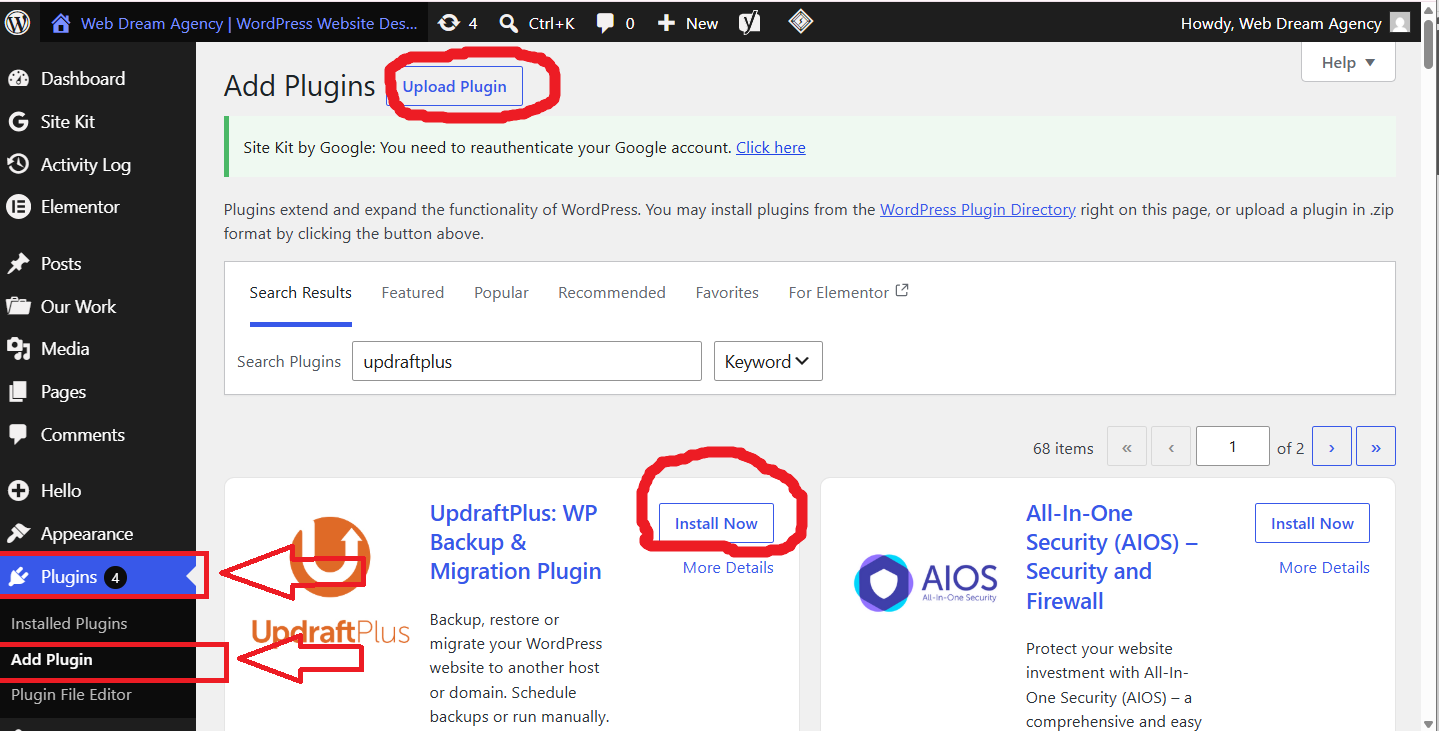
- ☐ One SEO plugin only. Rank Math, Yoast or AIOSEO all work, but never run two.
- ☐ Google Search Console and GA4 connected. Use Google Search Console to monitor indexing.
- ☐ XML sitemap submitted in Search Console, because it helps Google find new pages faster.
- ☐ robots.txt checked. Make sure there’s no stray
Disallow: /.
Once these seven items are done, your site is ready to be found. However, don’t stop here, because technical problems can still block your pages.
2. Technical Items in a WordPress SEO Checklist
Next, make sure search engines can crawl and understand your site. Otherwise, they’ll waste time on pages that don’t matter.
- ☐ Mobile-friendly, responsive theme, because most visitors browse on phones
- ☐ No broken links, with 301 redirects for any changed URL, so visitors and crawlers never hit a dead end
- ☐ Canonical tags set correctly, since duplicate URLs shouldn’t compete with each other
- ☐ Noindex on thin pages (tag archives, author archives, search results, thank-you pages), so search engines focus on your best content
- ☐ Breadcrumbs enabled, because they help both visitors and crawlers navigate
- ☐ Key pages within 3 clicks of the homepage
- ☐ Unused plugins and themes deleted, because they add weight and security risk
Also, keep your plugin list short, since every extra plugin can slow your site down. For a deeper look at crawl paths, see our guides on the XML sitemap in WordPress and WordPress breadcrumbs.
3. Speed and Core Web Vitals
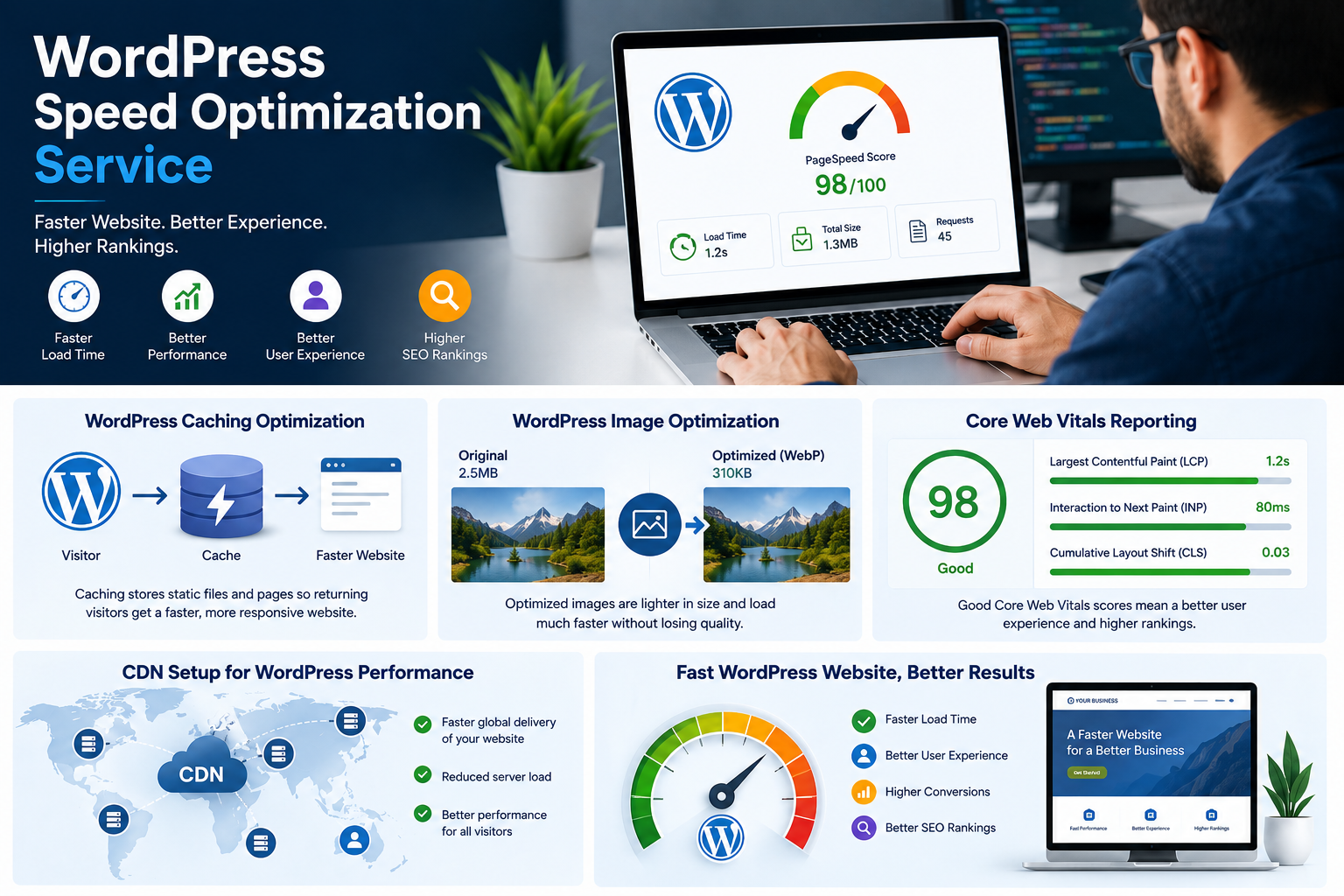
Speed matters for rankings and for conversions. As a result, a slow page loses both, so this part of the WordPress SEO checklist deserves extra attention.
- ☐ Caching plugin (WP Rocket, LiteSpeed Cache or FlyingPress), since it speeds up repeat visits
- ☐ Images compressed and served as WebP or AVIF, because smaller files load faster
- ☐ Lazy load below the fold, but never on your main hero image
- ☐ CSS and JS minified, with render-blocking scripts deferred
- ☐ CDN such as Cloudflare, so visitors load files from a nearby server
- ☐ Decent hosting and a current PHP version
- ☐ Core Web Vitals passing in PageSpeed Insights
Then compare your scores with the targets below. You can also read Google’s Core Web Vitals guide for more detail.
| Metric | What It Measures | Good | Needs Improvement | Poor |
|---|---|---|---|---|
| LCP (Largest Contentful Paint) | How fast the main content loads | ≤ 2.5s | 2.5s to 4s | > 4s |
| INP (Interaction to Next Paint) | How quickly the page responds to clicks and taps | ≤ 200ms | 200ms to 500ms | > 500ms |
| CLS (Cumulative Layout Shift) | How much the layout jumps while loading | ≤ 0.1 | 0.1 to 0.25 | > 0.25 |
Tip: Test on mobile, not just desktop, because that’s where most sites fail. [Add a real before/after example from your own work.] Also, if you’re still choosing a caching plugin, our WordPress cache plugin guide compares the main options, and our WordPress image optimization guide covers compression in detail.
4. On-Page SEO for Every Page
Repeat this list on every page and post you publish. That way, your whole site stays consistent.
- ☐ One target keyword per page, so your pages don’t compete with each other
- ☐ Title tag under about 60 characters, with the keyword near the front
- ☐ Meta description of 150 to 160 characters, with a clear reason to click
- ☐ One H1, then logical H2 and H3 headings
- ☐ Keyword in the first 100 words and in the URL
- ☐ Descriptive image alt text and file names
- ☐ 3 to 5 internal links with natural anchor text
- ☐ A few links to authoritative external sources
In addition, this quick reference shows the guideline for each element and the mistake we see most often.
| Element | Recommended Guideline | Common Mistake |
|---|---|---|
| Title tag | Under about 60 characters, keyword near the front | Same title on multiple pages |
| Meta description | 150 to 160 characters, with a clear reason to click | Left empty or auto-generated |
| H1 | One per page, includes the main keyword | Multiple H1s, or none |
| URL slug | Short, readable, keyword included | Long slugs with dates and stop words |
| Image alt text | Describe the image in plain language | Keyword stuffing, or leaving it blank |
| Internal links | 3 to 5 per page, descriptive anchor text | “Click here” as anchor text |
5. Content Quality
Technical SEO gets you crawled, but good content gets you ranked. Therefore, every item in your WordPress SEO checklist should support one goal: being genuinely helpful.
- ☐ Content matches search intent (someone searching “how to” wants a guide, not a sales page)
- ☐ Goes deeper than the pages already ranking
- ☐ Real author name and bio on every post, since it builds trust
- ☐ Old posts updated regularly, because fresh content signals ongoing value
- ☐ No keyword stuffing and no duplicate pages
- ☐ Topic clusters, with one pillar page linking to supporting posts
However, if you write about health, finance or legal topics, Google holds your pages to a higher standard. So add author credentials, a “reviewed by” line and cited sources. For example, a clinic site should show which doctor reviewed each medical page. If you run a practice, our medical website design guide explains how to build that trust.
6. Schema Markup for WordPress
Schema helps search engines understand what each page is about. As a result, your listings can look clearer in search.
- ☐ Organization or LocalBusiness (use a more specific type if one fits)
- ☐ BlogPosting for articles
- ☐ Service and Review schema where relevant
- ☐ Everything validated in Google’s Rich Results Test
The table below shows which schema type suits each page. After adding any markup, always validate it.
| Page Type | Recommended Schema | Note |
|---|---|---|
| Homepage | Organization or LocalBusiness, WebSite | Use a more specific business type if one fits |
| Blog post | BlogPosting or Article | Include author and publish date |
| Service page | Service | Pair with LocalBusiness for local services |
| Contact / location page | LocalBusiness | Name, address and phone must match your Google Business Profile |
| Any inner page | BreadcrumbList | Usually handled by your SEO plugin |
| FAQ section | FAQPage | Good for clarity, but rich results are now limited |
7. Local SEO (If You Serve a Location)
If you serve a specific area, local SEO can bring your best leads. So make sure these basics are in place.
- ☐ Google Business Profile claimed and fully filled in, so you show up in local searches
- ☐ NAP (name, address, phone) identical everywhere
- ☐ Embedded map and dedicated location pages
- ☐ Steady flow of real reviews, plus replies to them
Also, keep your details identical across your site and directories, because inconsistent data confuses search engines.
8. Trust and Conversion Signals
Trust signals help visitors and search engines alike. Besides that, they make it easier for people to contact you.
- ☐ About, Contact, Privacy Policy and Terms pages
- ☐ Testimonials and case studies visible, because people trust proof
- ☐ Clear calls to action, with forms that actually work
- ☐ Security plugin and automatic backups
Since hacked sites lose rankings quickly, security and backups are worth the effort. Our WordPress security checklist and WordPress backups guide cover both.
9. Off-Page SEO
Backlinks still matter, but quality beats quantity. Therefore, focus on relevant sites rather than bulk links.
- ☐ Earn quality backlinks (partnerships, guest posts, directories, PR)
- ☐ Link your social profiles
- ☐ Monitor brand mentions
- ☐ Disavow only clearly toxic links, and only if needed
Also, use the disavow tool carefully, because most sites never need it.
10. Monthly Maintenance for Your WordPress SEO Checklist
SEO isn’t a one-time launch task. Instead, treat it as a routine and put these checks on the calendar.
- ☐ Check Search Console for indexing errors, so problems don’t pile up
- ☐ Track rankings and organic traffic
- ☐ Re-crawl with Screaming Frog or Sitebulb
- ☐ Update plugins, themes and WordPress core, because outdated code causes security and speed issues
- ☐ Fix new 404s and refresh pages that are slipping
Then use this schedule to stay consistent. Our WordPress maintenance checklist also covers the wider upkeep.
| Frequency | Task | Tool |
|---|---|---|
| Weekly | Check backups and security alerts, scan Search Console messages | Backup plugin, security plugin, Search Console |
| Monthly | Review indexing errors, track rankings and traffic, update plugins/themes/core, fix new 404s | Search Console, GA4, WordPress dashboard |
| Quarterly | Full site crawl, retest Core Web Vitals, refresh underperforming posts, review backlinks | Screaming Frog or Sitebulb, PageSpeed Insights |
| Yearly | Full SEO audit, review schema, remove unused plugins and themes, re-check redirects | Crawler, Rich Results Test |
WordPress SEO Checklist FAQs
WordPress SEO Checklist Basics: Setup and Indexing
1. How long does a WordPress SEO checklist take to work?
Technical fixes can show results within a few weeks. However, content-driven rankings usually take [3 to 6 months], because competition and site authority both matter.
2. Is WordPress good for SEO?
Yes, because it offers clean URLs, flexible content structure and a huge plugin ecosystem. However, a slow theme or messy plugins can still hold you back.
3. Do I need an SEO plugin?
In practice, yes. A plugin like Rank Math, Yoast or AIOSEO handles titles, meta descriptions, sitemaps, canonicals and schema in one place. As a result, you avoid a lot of manual work.
4. Which is better, Yoast or Rank Math?
Both are solid, so pick one and set it up properly. However, never run two SEO plugins together, because they create duplicate tags and conflicts.
5. How do I know if search engines are blocked on my site?
First, go to Settings → Reading and check that “Discourage search engines from indexing this site” is unchecked. Then open yoursite.com/robots.txt and make sure it doesn’t contain Disallow: /.
6. How do I check if my pages are indexed?
Use the URL Inspection tool in Google Search Console. Alternatively, search site:yoursite.com in Google for a quick rough check.
Permalinks, Speed and Core Web Vitals
7. What are the best permalink settings for SEO?
“Post name” (/%postname%/) is the best default because it’s short, readable and keyword-friendly.
8. Can I change my permalinks on a live site?
You can, but set up 301 redirects from the old URLs to the new ones first. Otherwise, you’ll create 404 errors and lose rankings.
9. How long should a title tag and meta description be?
Aim for a title under about 60 characters and a meta description of 150 to 160 characters. However, Google measures pixel width, so treat these as guidelines, not hard limits.
10. What are Core Web Vitals, and what scores should I aim for?
They’re Google’s page experience metrics. First, LCP (loading) should be under 2.5 seconds. Next, INP (responsiveness) should be under 200ms. Finally, CLS (visual stability) should be under 0.1.
11. What’s the best caching plugin for WordPress?
WP Rocket, LiteSpeed Cache and FlyingPress are all good choices. However, LiteSpeed Cache works best on LiteSpeed servers, so check your host first. Also, use only one caching plugin at a time.
12. Should I lazy-load all my images?
Lazy-load images below the fold. However, don’t lazy-load your main hero image, because it slows down LCP and hurts your score.
Content, Schema, Links and Local SEO
13. How many internal links should each page have?
There’s no fixed number. Still, 3 to 5 relevant links per page is a practical target, and descriptive anchor text works better than “click here”.
14. What is schema markup, and do I need it?
Schema is structured data that helps search engines understand your content. For example, most sites should have Organization or LocalBusiness schema, plus BlogPosting on articles. After adding it, validate it with Google’s Rich Results Test.
15. Should I noindex tag and author archive pages?
On most small sites, yes, because thin archive pages add little value. However, check each case, since some sites get real traffic from category pages.
16. Do I still need backlinks?
Yes. Good content helps, but links from trusted, relevant sites are still a strong ranking signal. Therefore, focus on quality over quantity.
17. Does local SEO matter for my WordPress site?
If you serve customers in a specific area, it matters a lot. First, claim your Google Business Profile. Then keep your name, address and phone number identical everywhere and collect real reviews.
18. Is it okay to use AI to write website content?
Google’s focus is on whether content is helpful and original, not how it was produced. However, AI drafts still need your own experience, real examples and accurate facts. So have a human review everything before publishing.
Want Help Working Through This WordPress SEO Checklist?
Not sure where your site stands? We’ll run through this WordPress SEO checklist on your site and tell you what to fix first. Also, there’s no obligation.
Book a Free SEO Check