How to Backup Your WordPress Website (Complete Beginner’s Guide)
A WordPress backup is your safety net. Skip this guide’s 15 minutes now, and you could lose hundreds of hours later if a hack, a bad update, or a fat-fingered delete wipes out your site. Here’s exactly how to set one up — no jargon, no guesswork.
What Is a WordPress Backup?
Simply put, a WordPress backup is a full copy of your site’s files and database, stored somewhere safe so you can restore everything if disaster strikes. In other words, it’s your undo button for malware, a broken update, a server crash, or anything else that goes wrong. You can create one manually, through a plugin, or via your host’s built-in tools.
Why WordPress Backups Actually Matter
Most people don’t think about backups until they need one — and by then, unfortunately, it’s too late. Here’s what we’ve seen go wrong on real client sites over the years, managing dozens of WordPress builds for medical clinics and small businesses:
Hacks. For example, a clinic site we inherited had been silently injecting spam links into its footer for three months before anyone noticed. Because we had a clean backup from before the infection, the fix took 20 minutes instead of a full rebuild.
Bad updates. Generally, plugin and theme updates go smoothly. However, they occasionally break things — a mismatched PHP version, a conflicting script, a fatal error screen where your homepage used to be. Without a recent backup, you’re essentially debugging blind.
Human error. Sometimes someone deletes the wrong page. Other times, a client “cleans up” media files without asking. Either way, it happens more often than you’d think.
Server failures. Even reliable hosts have bad days. Hardware fails, and migrations occasionally go sideways. In these cases, your backup is the one thing entirely under your control.
What a Complete WordPress Backup Includes
Essentially, a real backup has two parts, and you need both — otherwise, a restore simply won’t work.
Website files: WordPress core, your active theme, plugins, media uploads, custom CSS/JS, wp-config.php, and .htaccess.
The database: every post, page, comment, category, user account, and setting — plus, if you run WooCommerce, every product, order, and customer record.
| What to Back Up | Required? | Why It Matters |
|---|---|---|
| WordPress Database | ✅ Yes | Holds all your actual content and settings |
| Themes | ✅ Yes | Controls design and layout |
| Plugins | ✅ Yes | Powers site functionality |
| Media Uploads | ✅ Yes | Images and files can’t be regenerated |
| wp-config.php | ✅ Yes | Site’s core configuration |
| .htaccess | ✅ Yes | Redirects and server rules |
| Custom Code | ✅ Yes | Snippets and child theme edits |
Overall, missing even one of these makes restoring your site far messier than it needs to be.
How Often Should You Back Up Your WordPress Website?
Naturally, this depends on how often your site changes. A blog that publishes monthly, for instance, doesn’t need the same schedule as a store taking orders every hour.
| Website Type | Recommended Frequency |
|---|---|
| Personal Blog | Weekly |
| Business Website | Daily |
| News Website | Daily |
| WooCommerce Store | Daily or real-time |
| Membership Website | Daily |
As a rule of thumb, it’s better to back up more often than feels necessary. After all, you’ll never regret having an extra backup — but you will regret not having one.
Best WordPress Backup Methods Compared
Before picking a method, here’s how the main options stack up against each other on the things that actually matter — not just “easy” versus “hard.”
| Method | Difficulty | Setup Time | Automatic Scheduling | Cloud Storage | Free Tier Limit | Restore Speed | Best For |
|---|---|---|---|---|---|---|---|
| UpdraftPlus | Easy | ~10 min | ✅ Yes | ✅ Yes (multiple providers) | Unlimited backups, some features locked | Fast, one-click | Beginners & most sites |
| All-in-One WP Migration | Easy | ~5 min | Limited (free tier) | Limited (free tier) | 512MB export cap | Fast, single-file import | Migrations & small sites |
| Hosting Backup | Very Easy | None (built-in) | ✅ Usually | Depends on host | Varies by plan | Fastest (server-side) | A secondary safety layer |
| Manual (cPanel/FTP + phpMyAdmin) | Advanced | 20–30 min | ❌ No | ❌ Manual upload only | None | Slowest, most control | Developers & agencies |
Our honest take, after using all four across client sites, is that UpdraftPlus covers 90% of use cases well. Meanwhile, hosting backups are a great addition, not a replacement. Manual backups, on the other hand, mainly earn their keep when a dashboard is inaccessible and you need to work around it directly.
Method 1: Back Up Your WordPress Website with UpdraftPlus
UpdraftPlus is the plugin we default to for client sites, mainly because it’s reliable, free, and doesn’t require touching a single line of code.
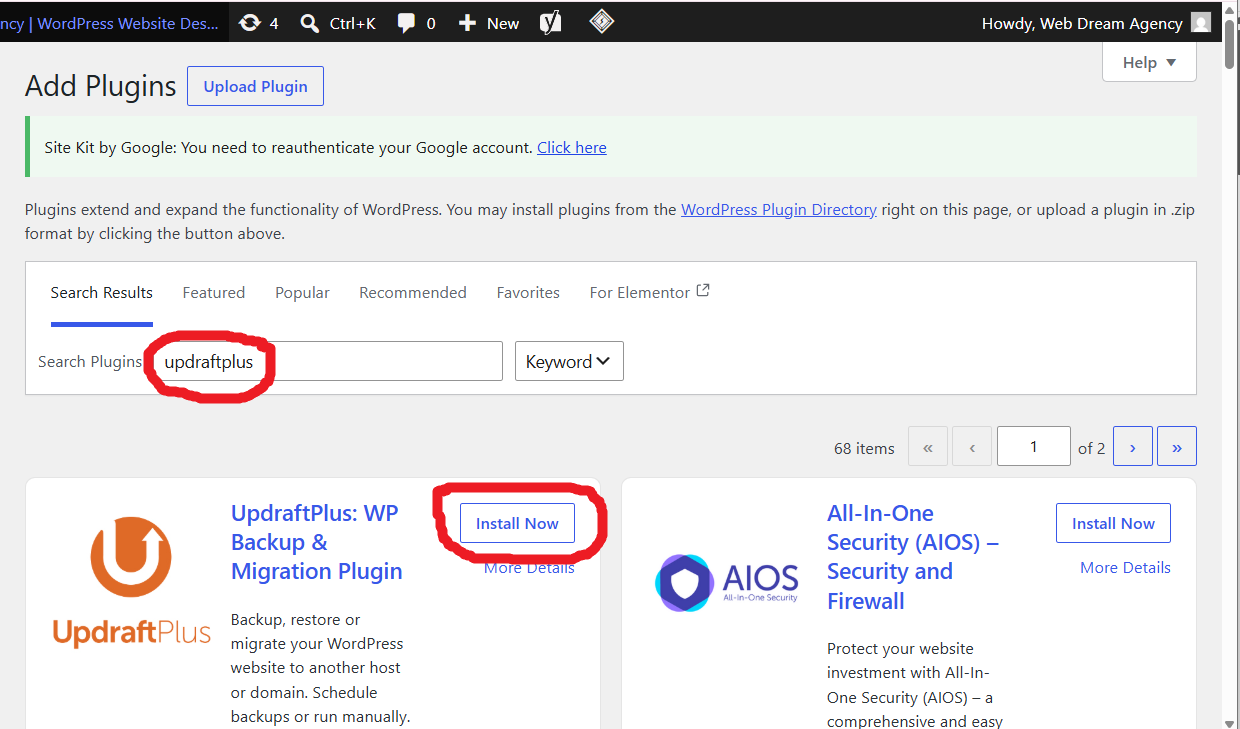
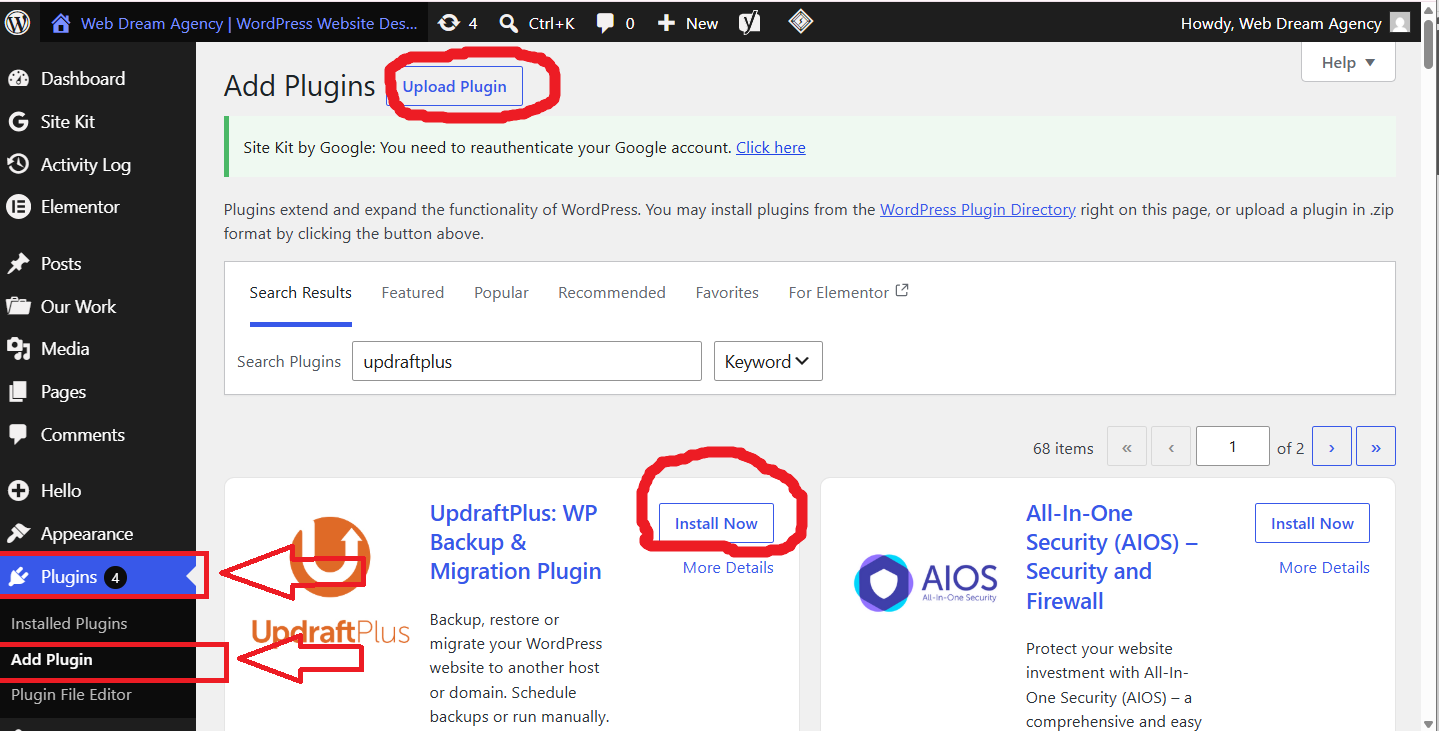
Install it: First, go to Plugins → Add New Plugin, search “UpdraftPlus,” then Install and Activate.
Run your first backup: Next, head to Settings → UpdraftPlus Backups, click Backup Now, and make sure both “Include your database” and “Include your files” are checked before confirming.
Automate it: After that, pick a schedule in the Settings tab — daily for active business sites, weekly for something like a personal blog that barely changes.
Send it off-site: Then, connect a cloud storage provider (Google Drive, Dropbox, OneDrive, Amazon S3, or a few others UpdraftPlus supports) so your backups don’t live only on the same server that might fail.
Restoring: Finally, go back to Settings → UpdraftPlus Backups, find the backup under Existing Backups, click Restore, choose what to bring back, and confirm. Typically, most restores finish in a few minutes.
If you need advanced configuration options or troubleshooting help, refer to the official UpdraftPlus documentation.
| Pros | Cons |
|---|---|
| Free version covers most needs | Some advanced scheduling is premium-only |
| One-click automatic backups | Large sites take longer to process |
| Simple restore process | Initial cloud setup takes a few extra minutes |
Method 2: Back Up Your WordPress Website with All-in-One WP Migration
This plugin is built primarily for site migrations, but it also doubles nicely as a quick, single-file backup — especially handy if you’re about to move a site to a new host.
First, install the plugin, then go to All-in-One WP Migration → Export → File. As a result, it packages your entire site — files and database — into one downloadable file. Save it locally and, ideally, keep a second copy somewhere in the cloud.
To restore, simply go to Import inside the same plugin, select your file, and let it run.
| Pros | Cons |
|---|---|
| Genuinely one-click | Free version caps exports around 512MB |
| Great when switching hosts | Fewer cloud storage integrations |
| Simple, single-file format | Larger sites may need the paid extension |
Method 3: Use Your Hosting Provider’s WordPress Backup
Interestingly, many hosts — Hostinger, SiteGround, Bluehost, GoDaddy, WP Engine, DreamHost — already back up your site automatically as part of your plan. Therefore, it’s worth checking your hosting dashboard for “Backups,” “Snapshots,” or “Backup Manager” before installing anything else.
These backups run server-side, so they don’t add any load to your site, and restoring is usually a single click. However, there’s a catch: if something happens to your hosting account itself, that backup could go down with it. For this reason, treat it as a second layer, not your only layer.
Method 4: Manually Back Up Your WordPress Website
If you want full control — or your dashboard is down and you need another way in — you can back up files and the database separately.
Files, via cPanel: File Manager → navigate to public_html → select everything → Compress → ZIP Archive → download.
Files, via FTP: Alternatively, connect through FileZilla with your credentials, open public_html, and download the full folder to your computer.
Database, via phpMyAdmin: Select your database → Export tab → Quick method, SQL format → Go. For more information about exporting and importing databases, see the official phpMyAdmin documentation. Immediately, the .sql file downloads automatically.
Before considering the job done, double-check that you actually have the ZIP and the SQL file, and confirm neither is corrupted or oddly small.
Restoring manually: Re-upload your files through File Manager or FTP and extract them into public_html. For the database, open phpMyAdmin, select your database, click Import, choose your .sql file, and run it.
WordPress Backup Best Practices
The 3-2-1 rule. Specifically, keep three copies, across two storage types, with one stored off-site. In practice, that usually means your local computer, Google Drive, and your host’s own backup.
Back up before every update. Whether it’s core, theme, or plugin, always snapshot first. It only takes two minutes, and it has saved us from more than one broken update mid-project.
Never store your only backup on the same server as your site. Otherwise, if the server goes down, your backup goes down with it.
Test your restores. After all, a backup you’ve never tested is really just a guess, not a safety net. So, restore to a staging site every few months to confirm everything actually works.
Encrypt anything with customer data. If you’re running WooCommerce or collecting client information, don’t leave that sitting in an unprotected cloud folder.
Common WordPress Backup Mistakes to Avoid
- Backing up files but skipping the database — as a result, restoring becomes impossible.
- Forgetting the media library — consequently, years of images are gone for good.
- Keeping just one copy — meaning a single corrupted backup sends you back to zero.
- Never testing a restore — until, of course, the day you actually need it and it doesn’t work.
- Storing backups only on the live server — so one server failure takes both down together.
WordPress Backup Checklist
- ✅ Website files backed up
- ✅ Database exported
- ✅ Copy stored in the cloud
- ✅ Automatic schedule set
- ✅ A test restore actually completed
- ✅ Backup taken before the last update
- ✅ Multiple copies in different locations
WordPress Backup FAQs
How often should I back up my WordPress website?
Generally, it’s best to match your schedule to how often your site changes — daily for active stores and business sites, while weekly is usually fine for a slower-moving blog.
Does WordPress back itself up automatically?
No, actually. WordPress has no built-in backup system. Instead, you need a plugin like UpdraftPlus or a host that includes backups in your plan.
Can I back up my site for free?
Yes. In fact, UpdraftPlus and All-in-One WP Migration both have solid free tiers. That said, larger sites eventually hit their limits and may need a paid version.
Which plugin is best?
Overall, UpdraftPlus works best for most sites, thanks to its automatic scheduling and cloud integration. However, All-in-One WP Migration is better suited if you’re specifically planning a host migration.
Is my host’s backup enough on its own?
It’s a good safety net, but not a complete one. Therefore, keep a second copy somewhere your host doesn’t control, in case the account itself becomes inaccessible.
Can I restore a backup on a different host?
Yes — in fact, that’s exactly what most backup plugins are built to support, which makes host migrations far less risky.
Where’s the safest place to store backups?
Ideally, spread them across at least two locations. For example, your computer plus one cloud provider is a solid minimum, following the 3-2-1 rule above.
How long does a WordPress backup take?
Typically, a few seconds to several minutes, depending on your site’s size. Media-heavy sites, for instance, take noticeably longer than a simple blog.
Will a backup slow down my website?
Not usually. Most plugins run backups in the background, though very large manual backups on shared hosting can occasionally cause a brief slowdown.
Do I need to back up a staging site too?
Not typically, since staging environments are meant to be disposable. However, always back up before pushing staging changes live to production.
What happens if I don’t have a recent backup and my site crashes?
Unfortunately, recovery becomes far harder — often requiring manual rebuilding from cached pages, old exports, or, in the worst cases, starting over completely.
Can backups protect against ransomware?
Yes, provided the backup is stored off-site and isn’t accessible from the compromised server. Otherwise, ransomware can potentially encrypt your backup files too.
Final Thoughts on WordPress Backups
Ultimately, backing up your WordPress site takes minutes, while rebuilding one from nothing takes days — if you’re even lucky enough to recover the content at all. So, pick a method that matches your comfort level, whether that’s a plugin, your host’s built-in tools, or a manual setup. Just make sure it’s automatic, off-site, and, most importantly, actually tested.
Set it up today. After all, future you will be relieved you did.