XML Sitemap WordPress: The Complete Guide to Setup, Submission, and Fixes
If search engines can’t find your pages, your content might as well not exist. That’s exactly what an XML sitemap WordPress setup solves — it’s a structured file that lists every important URL on your site, so Google and other search engines can discover, crawl, and index your content faster and more completely.
Fortunately, WordPress makes this easier than most people expect. For instance, since version 5.5, every WordPress site generates a basic sitemap automatically. Even better, with the right plugin, you can turn that basic file into a precision tool — one that controls exactly what search engines index, adds media sitemaps, and pings search engines every time you publish.
So, here’s how to set it up, choose the right method for your site, and fix it when something breaks.
Why Every XML Sitemap WordPress Setup Matters for SEO
Search engines don’t read your site the way visitors do. Instead, they send crawlers to follow links, and if a page sits too deep in your structure or lacks internal links, crawlers can miss it entirely — especially on large or newer sites with a thin backlink profile.
A sitemap removes that guesswork. Specifically, it hands Google a direct list of every URL worth crawling, along with signals like last-modified dates. As a result:
- First, search engines discover new pages faster instead of waiting to stumble onto them organically
- Also, your site’s structure no longer buries important pages
- In addition, search engines can prioritize crawl budget on content that actually matters
- Finally, you can diagnose indexing issues more easily, since Search Console reports sitemap status directly
In short, a sitemap isn’t a ranking factor by itself — but it’s the infrastructure that lets everything else you do for SEO actually get seen.
Method 1: The Built-in WordPress Core Sitemap
If you’re running WordPress 5.5 or later and haven’t installed an SEO plugin, then WordPress already runs a sitemap on your site.
- Where to find it: first, check
yourdomain.com/wp-sitemap.xml - What it covers: it also lists posts, pages, categories, tags, and author archives
- Where it falls short: however, it offers no dashboard to manage it. So, if you want to exclude a specific page or customize metadata, you’ll need to write custom PHP — not something most site owners want to touch.
In other words, it works, but it’s a starting point rather than a finished solution.
Method 2: All-in-One SEO Plugins for a Better XML Sitemap WordPress Setup
For most sites, this is the better path. Specifically, these plugins automatically switch off the WordPress core sitemap to prevent conflicts, then generate a more capable one in its place.
- Yoast SEO — For example, enable it under Yoast SEO > Settings > Site features, and your sitemap deploys instantly.
- Rank Math SEO — Similarly, head to the sitemap section in the Rank Math dashboard, where visual toggles let you include or exclude custom post types, images, and HTML formats.
- All in One SEO (AIOSEO) — Meanwhile, this one is built for scale. It automatically splits large sites into clean sub-sitemaps and pings search engines the moment new content goes live.
Method 3: A Dedicated Sitemap Plugin
Already handling SEO manually but still want a proper sitemap? Then a standalone plugin gives you that without the extra weight of a full SEO suite.
For example, XML Sitemap Generator for Google is a well-established option in the WordPress Plugin Directory, and it handles both WooCommerce stores and multi-author sites cleanly.
Comparing Your Options
Overall, here’s how the three approaches stack up against each other:
| Feature | Built-in Core | All-in-One SEO Plugins | Dedicated Plugins |
|---|---|---|---|
| Default URL | /wp-sitemap.xml | /sitemap_index.xml | /sitemap.xml |
| Setup | Automatic | Plug-and-play | Simple activation |
| Admin controls | None (PHP required) | Full dashboard | Granular rules |
| Exclusions | Not possible | Yes, per page/post type | Yes, per page/category |
| Media sitemaps | No | Included or extendable | Yes (images & video) |
XML Sitemap Best Practices
Simply having a sitemap isn’t the same as having one that works well. In fact, a few practices separate the two:
- Only include indexable, canonical URLs. For instance, skip pages marked “noindex,” redirects, and duplicate or non-canonical URLs — otherwise, you send Google mixed signals.
- Keep it updated automatically. Otherwise, manually maintained sitemaps go stale fast, whereas plugin-generated sitemaps update themselves whenever content changes.
- Split large sites into multiple sitemaps. After all, a single sitemap index linking to smaller category-based sitemaps (posts, pages, products) is easier for search engines to process than one massive file.
- Reference it in robots.txt. Usually this happens automatically, but it’s still worth confirming your
robots.txtfile points to the correct sitemap URL. - Skip thin or low-value pages. For example, tag archives with one post, empty category pages, or internal search results only add clutter, not SEO value.
- Include media sitemaps where relevant. Specifically, if images or video play a core role in your content — think product photography or tutorials — a media sitemap helps them surface in image and video search.
Common XML Sitemap Errors
Most sitemap problems fall into a handful of repeat offenders:
- URL mismatch. Often, after a migration or permalink change, the sitemap ends up referencing a URL structure that no longer matches the live site.
- Sitemap blocked in robots.txt. Similarly, a misconfigured robots.txt can accidentally disallow the very file meant to help crawling.
- “Discourage search engines” left enabled. Under Settings → Reading, this single checkbox turns off sitemap generation entirely, and site owners often forget it after a staging-to-live migration.
- Duplicate or conflicting sitemaps. For instance, if you run an SEO plugin alongside a standalone sitemap plugin, you can end up with two competing sitemap files, which confuses search engines about which one to trust.
- Sitemap too large. Likewise, if you exceed the 2,000-URL-per-file or 50,000-sitemap limits without proper splitting, partial indexing can result.
- Stale timestamps. Finally, when
lastmoddates never change even after real content updates, search engines may deprioritize recrawling those pages.
Fortunately, you can catch most of these quickly by checking the Sitemaps report inside Google Search Console, since it flags submission errors, warnings, and indexing status per URL.
E-E-A-T and Your Sitemap
A sitemap doesn’t directly build Experience, Expertise, Authoritativeness, or Trust — however, it does influence how efficiently Google can find and evaluate the content that does. Specifically, a well-organized sitemap ensures your best, most authoritative pages — in-depth guides, author bios, case studies, credentialed content — get crawled and indexed promptly, rather than competing for crawl budget against thin or duplicate pages.
For sites in trust-sensitive niches like healthcare, finance, or legal services, this matters even more. After all, if a poorly configured sitemap excludes or buries your strongest E-E-A-T signals — author credentials, cited sources, detailed service pages — then Google will struggle to associate your site with the expertise it actually has.
Submitting Your Sitemap to Google
Creating the file is only half the job; after all, search engines still need to know it exists.
- Confirm it loads. First, visit
yourdomain.com/sitemap.xml(or your sitemap’s actual URL) and make sure it opens correctly. - Open Google Search Console. Next, log in with your site’s verified account.
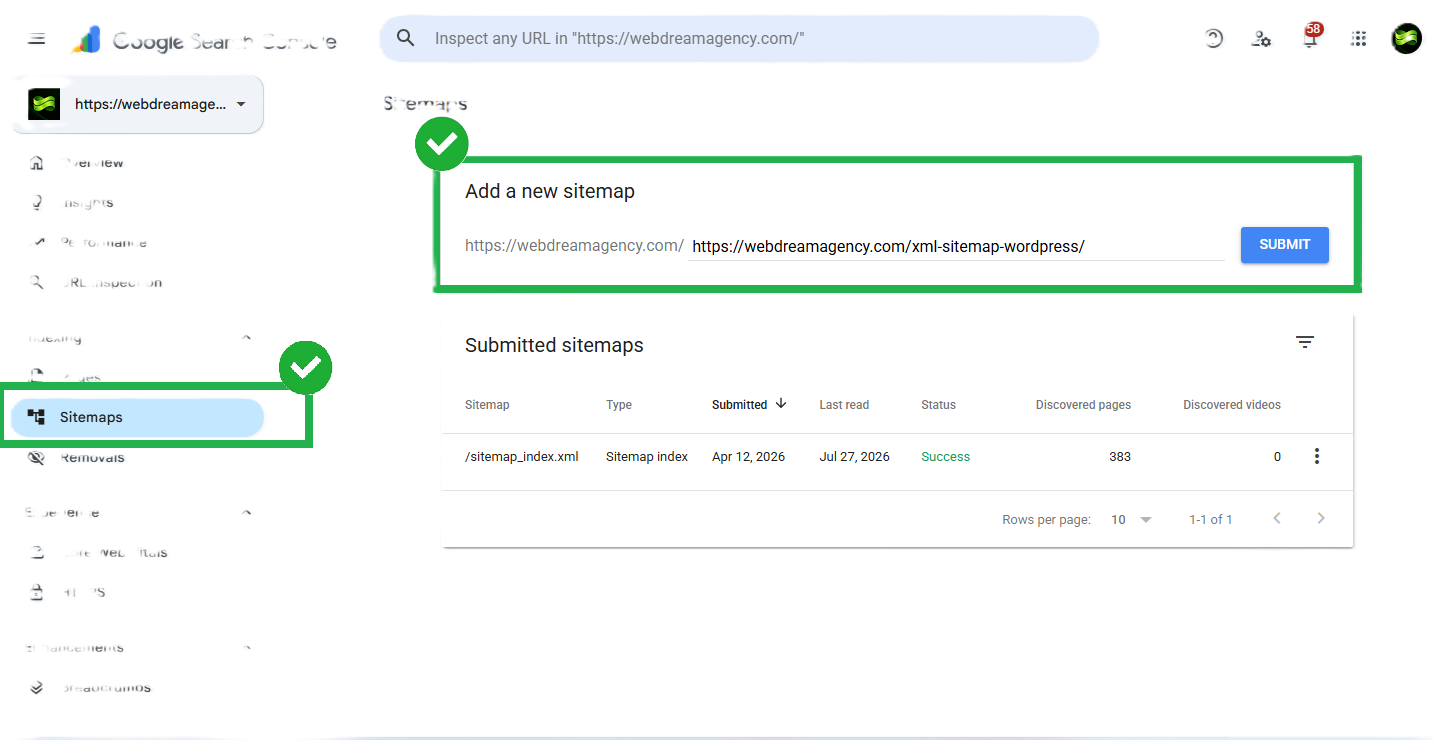
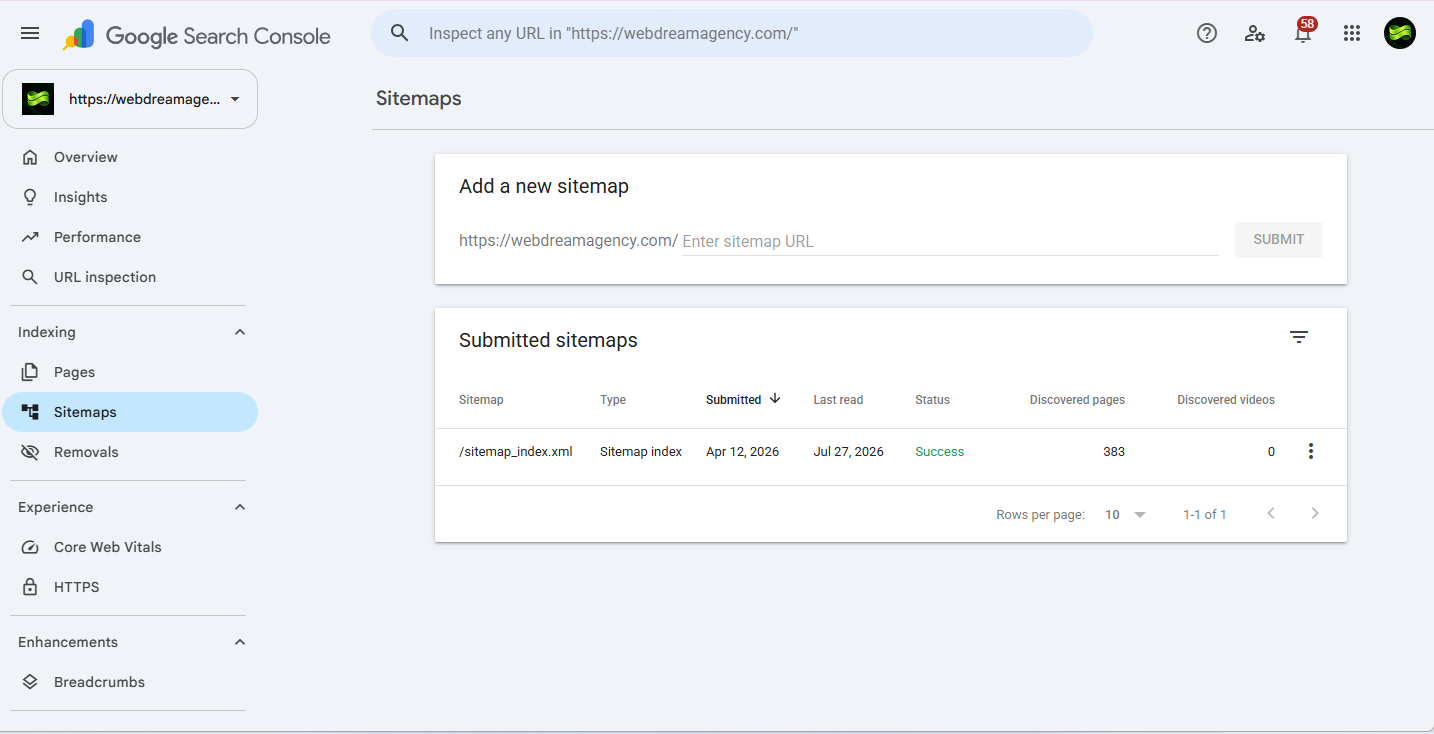
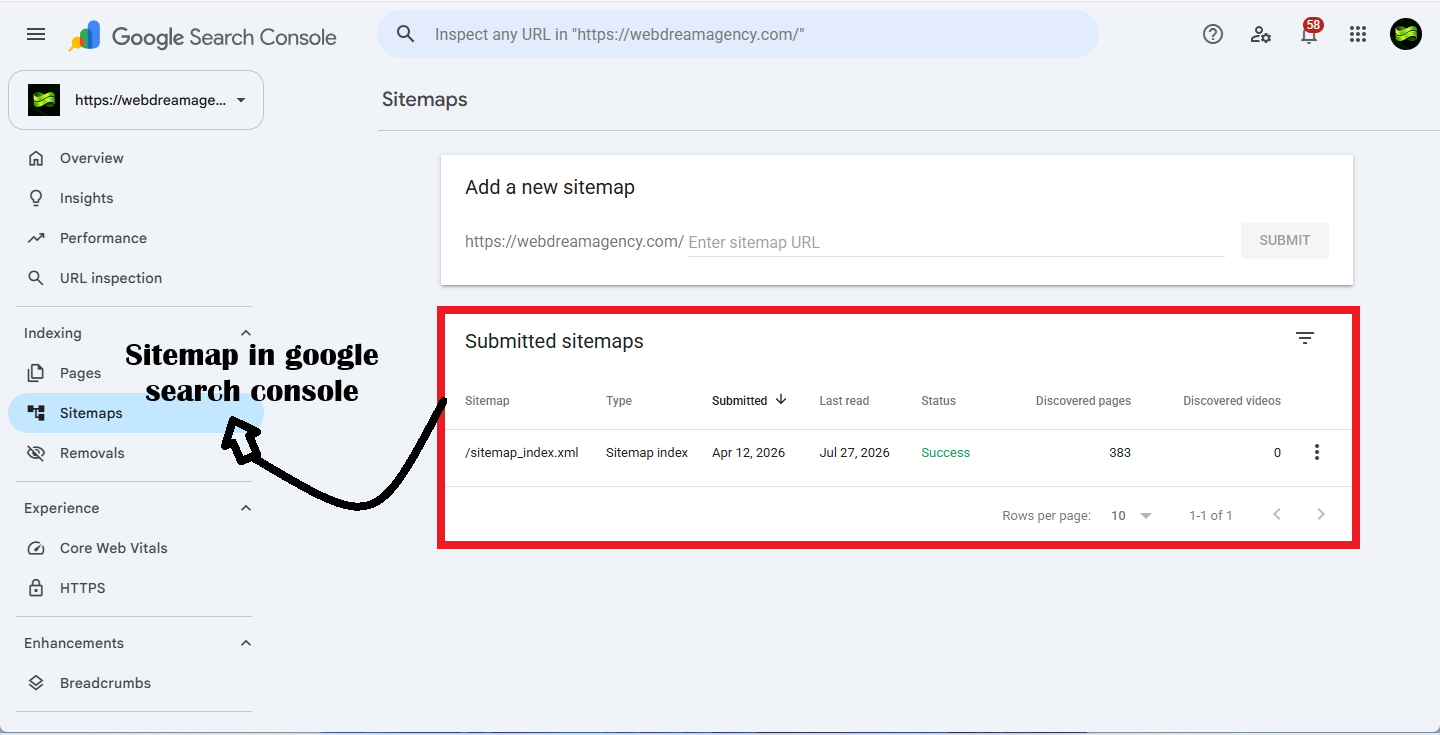
- Go to Sitemaps. You’ll find it under the indexing section in the left sidebar.

Finding the Sitemaps option in the Google Search Console sidebar - Submit the file. Then, enter the exact path — for example,
sitemap_index.xml— into the “Add a new sitemap” field.
Adding and submitting your sitemap URL in Google Search Console - Click Submit. Finally, from there, Google will queue your sitemap and recheck it periodically for updates.

Sitemap status showing “Success” after submission to Google Search Console
Frequently Asked Questions
XML Sitemap WordPress Basics and Setup
Is the core WordPress sitemap enough, or do I need a plugin? For small, simple sites, the core version usually does the job. However, larger or more complex sites benefit from a plugin’s exclusion controls and media sitemap support.
Do I need coding skills to manage a sitemap? Almost never. In fact, day-to-day management needs zero code; only advanced customizations, like excluding content programmatically, require it.
Do WooCommerce stores need a special sitemap? Not usually. In fact, most SEO plugins and standalone sitemap tools already include product pages, categories, and tags automatically.
Technical Details
Does the core sitemap support images or videos? No — for that, you’ll need a plugin, since media sitemaps aren’t part of the core feature.
How many URLs can one sitemap file hold? Up to 2,000 URLs per file, and altogether, up to 50,000 sitemap files fit within one index.
Can I exclude a page without a plugin? Yes — for instance, developers can use the wp_sitemaps_posts_query_args filter to exclude specific post IDs directly.
How does WordPress notify search engines the sitemap exists? Behind the scenes, WordPress automatically adds a reference to the sitemap inside your site’s robots.txt file.
Troubleshooting
Why isn’t my sitemap showing any URLs? Often, this happens because someone enabled “Discourage search engines from indexing this site” under Settings → Reading — which disables sitemaps automatically.
Does disabling the sitemap remove the URL? Not quite. Instead, the URL still resolves, but it shows a message stating that sitemaps are disabled rather than a standard 404.
I’m seeing a 404 or tracking error in Search Console — what now? First, double-check that the sitemap URL matches exactly what’s live on your site, then resubmit it, since mismatched or outdated paths cause most of these errors.
Can an agency handle this for me? Absolutely — for example, Web Dream Agency regularly audits and configures sitemaps for clients, from excluding low-value pages to resolving indexing errors in Search Console.
Conclusion
Ultimately, an XML sitemap WordPress setup isn’t a set-it-and-forget-it checkbox; instead, it’s an ongoing part of keeping a WordPress site crawlable and indexable. So, whether you rely on the WordPress core sitemap, an all-in-one SEO plugin, or a dedicated sitemap tool, what matters most is that the file stays accurate, reaches Google Search Console, and reflects the pages you actually want ranked.
Therefore, get the setup right once, follow the best practices above, and keep an eye on Search Console for errors — and your sitemap becomes one less thing standing between your content and the search results it deserves to be in.