Why WordPress SEO Matters for Your Website
If you want more visitors to find your site on Google, you need to improve WordPress SEO on both the technical and content side of your website. WordPress does give you a solid starting point, but a handful of deliberate optimizations, from your site structure to the quality of your content, make a measurable difference over time.
Because of that, this guide walks through a practical setup process, shows real examples of what to do (and not do), and, finally, covers the parts of SEO that a checklist alone usually misses: search intent, topical depth, and the content-quality principles Google’s own Search Central documentation and Quality Rater Guidelines currently describe.
Part 1: WordPress SEO Setup Walkthrough
If you’re starting from scratch, work through these in order. Each builds on the one before it.
Step 1: Confirm Your Site Is Indexable
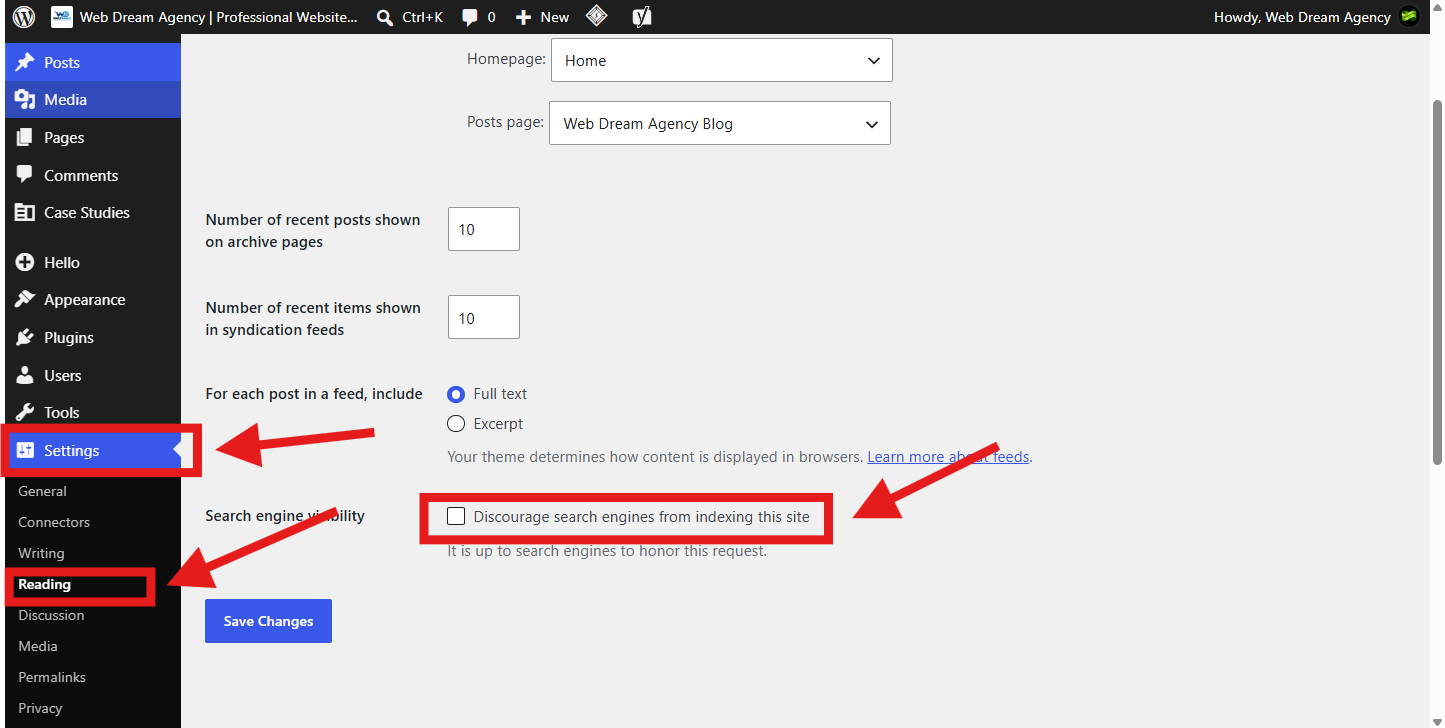
Before anything else, make sure Google can actually see your site. To do this, go to Settings > Reading in WordPress and confirm the “Discourage search engines from indexing this site” box is unchecked. This setting is often left on by accident after a site migration or during development, and as a result, it silently blocks all crawling, no matter how good your content is.
Step 2: Set Up HTTPS
Next, install an SSL certificate so your site loads over HTTPS. Most hosts issue one for free, and a plugin like Really Simple SSL can handle the WordPress-side configuration. That said, it’s worth being precise here: HTTPS is a confirmed but lightweight ranking signal, and it matters far more as a baseline trust and security requirement than as a way to move up in rankings.
In short, skipping it can hurt you (Chrome will warn visitors your site isn’t secure), but adding it won’t produce a ranking jump on its own.

Step 3: Pick One Site Address Format and Stick With It
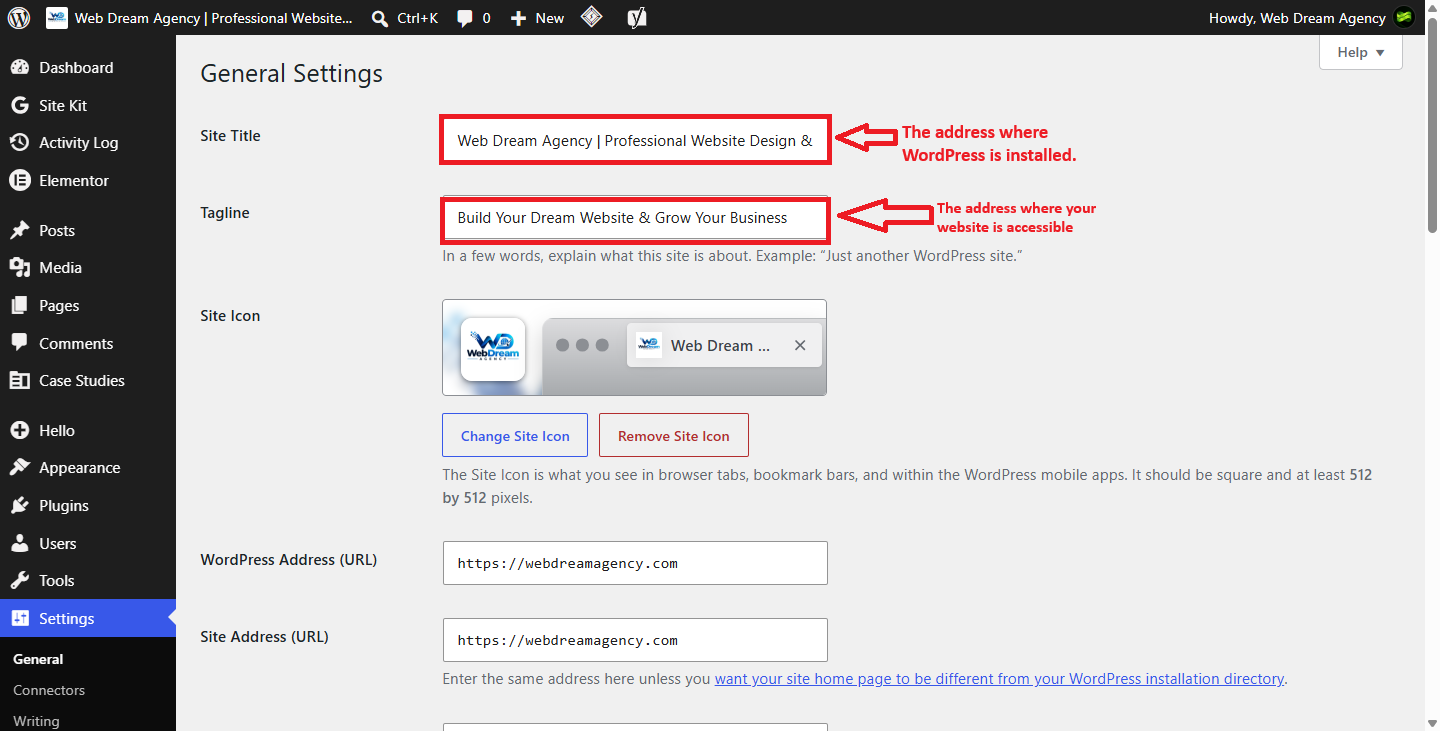
After that, choose either the www or non-www version of your domain under Settings > General and use it consistently. Technically, www and non-www are different hostnames, so without a preferred version set, both can end up crawled and indexed as separate URLs.
To avoid that, set a 301 redirect from the version you don’t use to the one you do, and make sure your canonical tags point to the one you’ve chosen. Done properly, this consolidates links and signals pointing at your content instead of splitting them across two versions.
Step 4: Install an SEO Plugin
Once your foundation is set, install an SEO plugin (Yoast SEO, Rank Math, All in One SEO, and SEOPress are the common options), since it handles a lot of the repetitive setup: XML sitemaps, meta tag templates, breadcrumbs, and basic schema. That said, it’s worth being clear about what these plugins actually do and don’t do, since that’s a common point of confusion.
| What an SEO plugin DOES do | What it DOESN’T do |
|---|---|
| Generates and updates your XML sitemap | Write your content or guarantee it ranks |
| Adds title tag / meta description templates | Fix thin, unhelpful, or duplicate content |
| Adds basic schema markup automatically | Replace the need for actual keyword research |
| Flags missing alt text, broken readability, etc. | Build backlinks or domain authority for you |
| Lets you set canonical tags and noindex per page | Speed up a slow site or fix hosting issues |
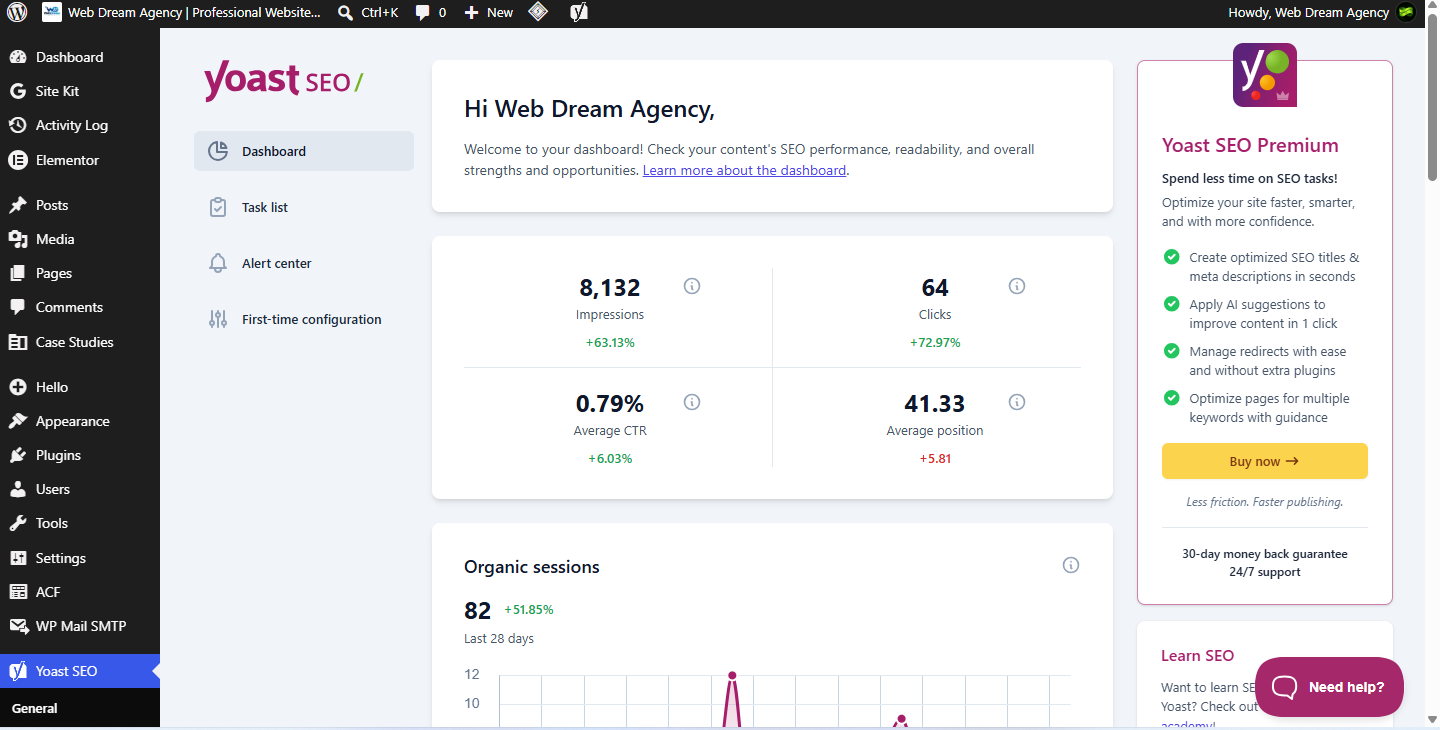
Afterward, run the plugin’s first-time setup wizard, and turn on XML sitemap generation so search engines have a map of your pages to crawl.
Step 5: Submit Your Sitemap to Google Search Console
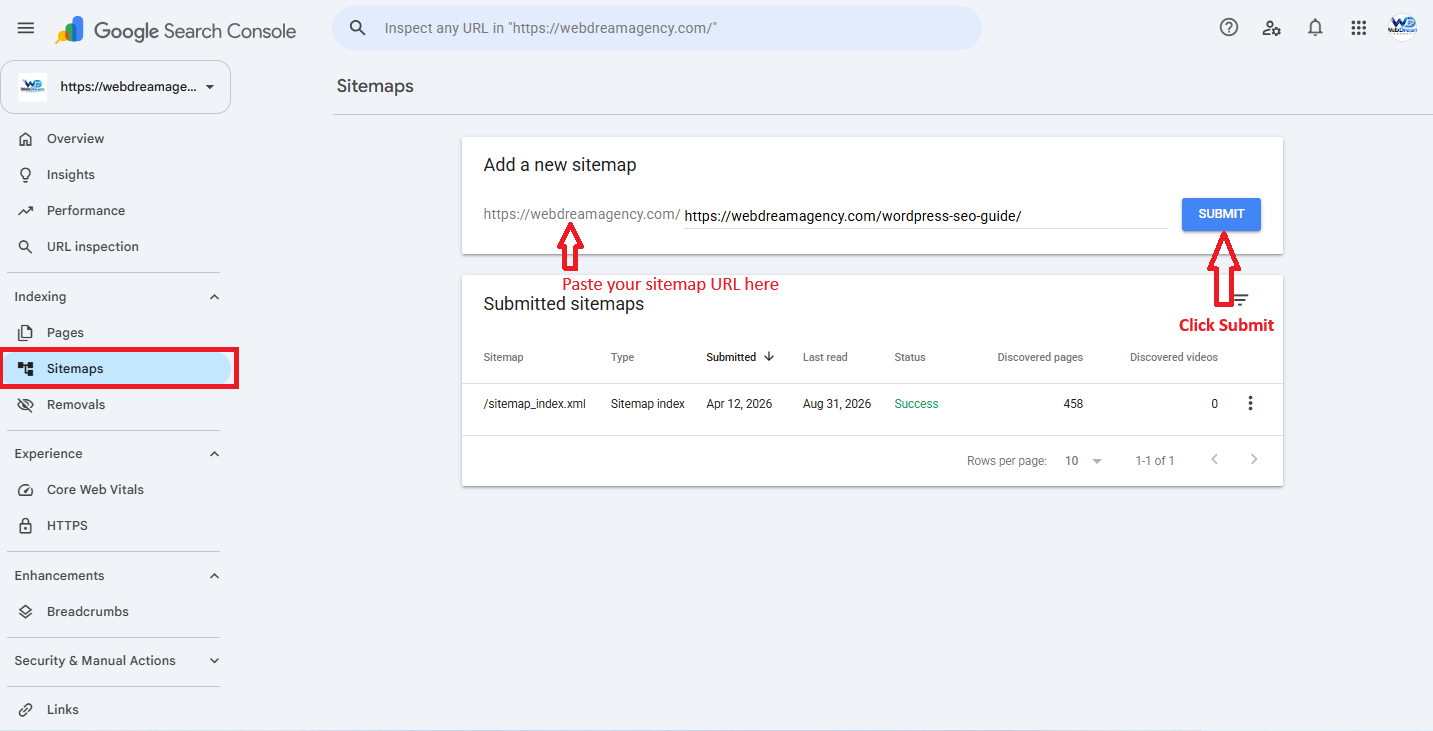
- First, create a free Google Search Console account and verify your site (most SEO plugins can generate the verification code for you).
- Next, find your sitemap URL in your SEO plugin or WordPress setup. Yoast SEO commonly generates one at
yourdomain.com/sitemap_index.xml, but the exact path varies by plugin and configuration, so check your plugin’s settings or SEO dashboard to confirm yours. - Then, in Search Console, open the “Sitemaps” section in the left menu, paste in the URL, and click Submit.
- Finally, give it a few days, then check the “Indexed pages” report to confirm Google is picking up your pages.
Step 6: Set Up Permalinks (With a Caveat)
For a brand-new site, go to Settings > Permalinks and choose the “Post name” structure for clean, keyword-friendly URLs.
However, if your site is already live and indexed, don’t make this change without a plan.Switching permalink structures changes every post’s URL, and unless you set up 301 redirects from every old URL to its new equivalent, you’ll lose the rankings and backlinks tied to those pages. Because of that risk, if you’re on an established site, either leave your existing structure alone or budget time for a proper redirect map before switching.
Part 2: Good vs. Bad WordPress SEO Examples
Generic advice like “write good titles” isn’t very actionable. Here’s what the difference actually looks like.
SEO-Friendly URLs
| Bad | Better | Why |
|---|---|---|
| yourdomain.com/?p=4821 | yourdomain.com/wordpress-caching-guide | Descriptive, no cryptic ID |
| yourdomain.com/blog/2023/06/15/post-title-here | yourdomain.com/wordpress-caching-guide | No date to go stale after edits |
| yourdomain.com/wordpress-caching-plugin-guide-for-beginners-2026 | yourdomain.com/wordpress-caching-guide | Shorter, still descriptive |
Title Tags for WordPress SEO
| Bad | Better | Why |
|---|---|---|
| Home | Web Dream Agency | WordPress Design for Clinics & Small Business | Vague titles waste the most valuable line in the search result |
| THE BEST WORDPRESS CACHING PLUGINS FOR YOUR WEBSITE IN 2026 | Best WordPress Caching Plugins in 2026 | All-caps titles eat far more pixel width and truncate sooner |
| WordPress Caching Plugin Guide | WordPress Caching Plugin: 5 Options Compared (2026) | Specific and front-loaded with the keyword |
Regarding title length: Google doesn’t enforce a fixed character limit. Instead, it truncates titles based on pixel width, roughly 580-600px on desktop, and wide letters (W, M, capitals) eat that budget faster than narrow ones (i, l, t).
Because of this, the 50-60 character range is a useful proxy for staying under that pixel limit, not a rule Google actually checks, and Google will sometimes rewrite your title in the SERP regardless of length if it thinks a different phrasing better matches the query.
Meta Descriptions for WordPress SEO
| Bad | Better |
|---|---|
| Welcome to our website! We offer many services for many clients. | We design WordPress sites for medical clinics, with fast page speeds and local SEO built in from day one. |
That said, meta descriptions aren’t a ranking factor, and Google often rewrites them anyway based on the search query. Even so, treat the 150-160 character range as a rough guide for avoiding truncation, and focus more on writing something specific enough that a searcher can tell your page answers their question.
Part 3: Core Web Vitals and WordPress SEO Page Experience
Core Web Vitals are the specific, measurable metrics Google uses to assess a page’s loading experience and interactivity, sometimes loosely grouped under the broader idea of “page speed.” There are three:
| Metric | Measures | Good Threshold |
|---|---|---|
| LCP (Largest Contentful Paint) | How fast the main content loads | Under 2.5 seconds |
| INP (Interaction to Next Paint) | How responsive the page feels to clicks/taps | Under 200 milliseconds |
| CLS (Cumulative Layout Shift) | How much the page jumps around while loading | Under 0.1 |
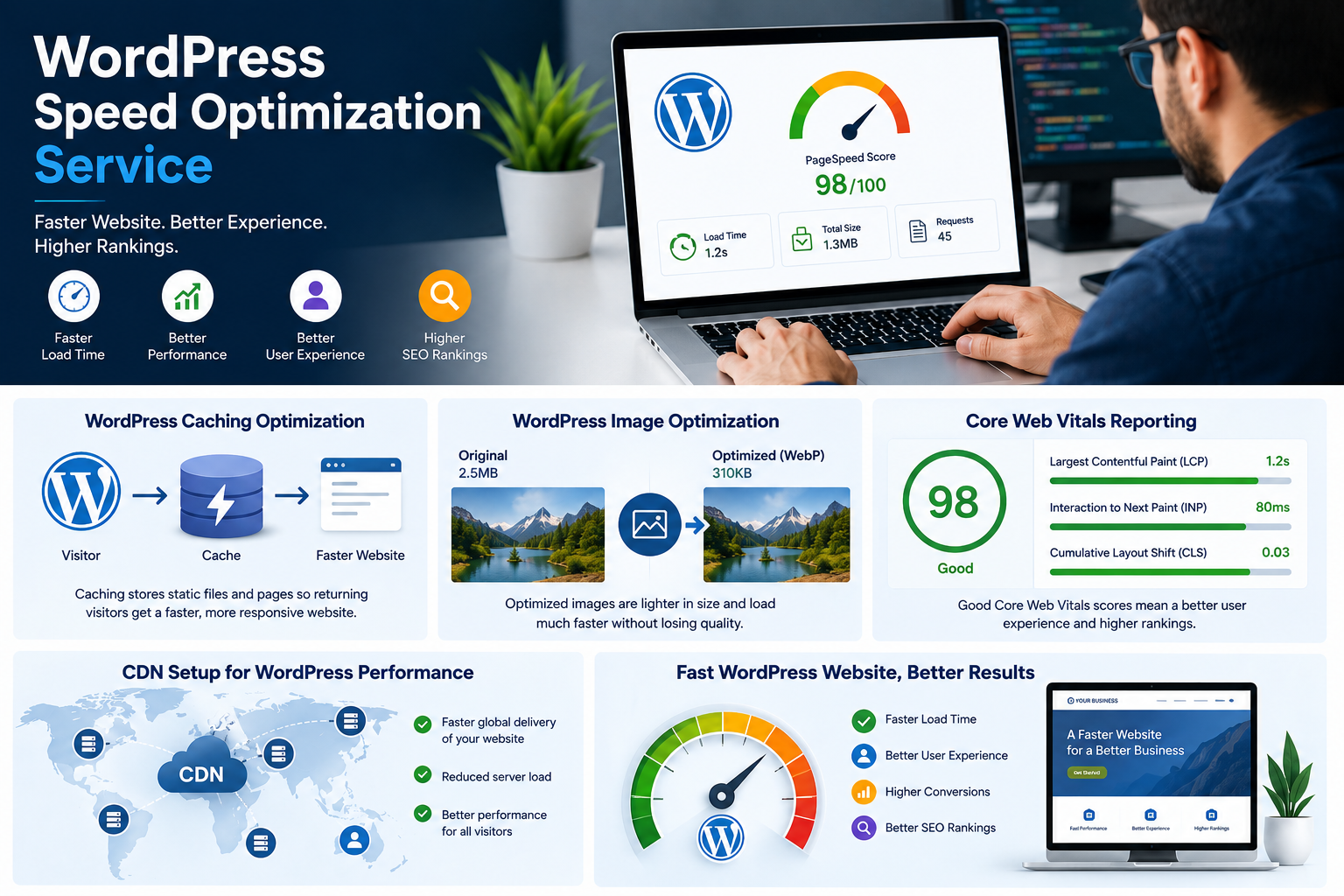
It’s also worth noting that INP replaced the older First Input Delay (FID) metric as the responsiveness measure. To check your scores, use Google Search Console’s “Core Web Vitals” report or PageSpeed Insights. From there, the practical fixes are: a caching plugin, image compression, a lighter theme or fewer heavy page-builder elements, and reserving space for images/ads so content doesn’t shift as it loads.
Part 4: Canonical Tags and Noindex for WordPress SEO
To prevent duplicate or low-value pages from confusing Google, two settings matter most:
- Canonical tag: Tells Google which URL is the “master” version when similar content exists at more than one address. For example, if a product appears under both
/shop/product-nameand/category/shop/product-name, set the canonical tag on both to point to the one you want indexed. - Noindex: Tells Google not to index a page at all, without removing it from your site. Good candidates include thank-you pages, internal search results pages, thin tag archives, or duplicate landing pages used for ads.
Fortunately, most SEO plugins add canonical tags automatically and let you toggle noindex per post, page, category, or tag from a simple checkbox in the editor.
Part 5: Content Strategy to Improve WordPress SEO
Technical fixes get you crawled and indexed. However, they don’t get you ranked. Since March 2024, Google has folded its helpful-content signals into its core ranking systems rather than running them as a separate, standalone check, and this evaluation happens at the site level. As a result, a pattern of thin or unhelpful pages can hold back your good content too.
Search Intent and WordPress SEO
Before writing, check what’s already ranking for your target keyword. For instance, if the top results are all comparison lists, a single-product review probably won’t outrank them, regardless of quality. In other words, match the format Google has already decided the query wants.
Topic Clusters and Keyword Mapping
Rather than writing isolated posts, group related content around a pillar page. For example:
- Pillar page: “WordPress SEO” (broad, comprehensive)
- Cluster posts: “WordPress Caching Plugins,” “XML Sitemap Setup,” “WordPress Image Optimization,” “WordPress Security Checklist”
In this structure, each cluster post targets one specific keyword and links back to the pillar, while the pillar links out to each cluster post. Additionally, keep a simple keyword map (a spreadsheet with one target keyword per URL) so you don’t accidentally write two posts competing for the same search term.
Demonstrating Experience for Better WordPress SEO
Google’s current guidance frames quality around “Who, How, and Why”: who created the content, how it was made (including AI use), and why it exists. Concretely, this means naming a real author, including specifics that only come from direct experience, such as a screenshot from your own dashboard or a result you actually achieved, and, importantly, being upfront when AI assisted the writing.
Updating Declining Pages to Improve WordPress SEO
Periodically, check Search Console for posts losing impressions or clicks. When you find one, refresh outdated screenshots, statistics, and plugin recommendations, then update the “last modified” date. Otherwise, a stale post with old screenshots and pricing signals to both readers and Google that the page hasn’t been maintained.
AI-Generated Content and WordPress SEO
Google doesn’t penalize content simply for being AI-assisted. Rather, it penalizes content that’s unhelpful, regardless of how it was produced. So, AI-drafted content that’s fact-checked, edited for accuracy, and supplemented with real expertise or original data can perform well, since Google’s guidance evaluates the output rather than the production method. On the other hand, mass-produced, unedited AI content at scale is what tends to get caught, mainly because it’s usually also the content that fails the “does this add anything” test.
Part 6: On-Page WordPress SEO Basics
- First, use a clear main heading for each page and organize supporting sections with H2s and H3s in a logical order; this is primarily an accessibility and readability practice that also helps search engines follow your content’s structure.
- Also, group posts into a small number of clear categories, and enable breadcrumbs so visitors and search engines can see where a page sits in your site structure.
- In addition, write internal links with descriptive anchor text. Instead of linking the word “here,” link the actual topic: “see our guide to WordPress caching plugins” tells both users and Google what the destination page covers.
- Similarly, write alt text that describes what’s actually in the image, adding a keyword only when it’s genuinely relevant.
- Finally, compress images and use a caching plugin as part of your regular publishing workflow, rather than treating it as a one-time fix.
Part 7: Website Security and WordPress SEO
A hacked or malware-flagged site loses both rankings and visitor trust, since browsers will actively warn people away from it. To prevent this, use a security plugin, keep WordPress core, your theme, and plugins updated, and maintain regular backups so you can recover quickly if something does go wrong.
A Realistic WordPress SEO Timeline and How to Measure Progress
The table below is an illustrative pattern, not a guarantee or a fixed schedule. Actual results depend heavily on your niche’s competitiveness, your site’s existing authority, and how consistently you publish and maintain content.
| Timeframe | What You Might See | What to Track |
|---|---|---|
| Weeks 1-4 | Technical fixes help pages get crawled and indexed | Indexed pages, Core Web Vitals scores in Search Console |
| Months 1-3 | New content may start appearing in search, often beyond page 1-2 | Impressions and average position in Search Console |
| Months 3-6 | Well-targeted pages can begin climbing for lower-competition terms | Clicks and click-through rate by query |
| Months 6-12+ | Competitive keywords and topical authority tend to build with consistent publishing and earned backlinks | Organic traffic trend, rankings for priority keywords |
Connect Google Search Console and Google Analytics from day one so you have a baseline to measure against, since these patterns will look different for every site.
Frequently Asked Questions
Getting Started
How long does it take to improve WordPress SEO?
Generally, technical fixes can show up in Search Console within weeks. However, content-driven ranking improvements are typically a 3-6+ month effort, and longer still for competitive keywords.
Which plugin is best for WordPress SEO?
Yoast SEO, Rank Math, All in One SEO, and SEOPress all cover the essentials. In practice, the differences are mostly in free-tier feature limits and interface preference, not in ranking outcomes.
Does WordPress come SEO-ready out of the box?
It does have a solid foundation, including custom titles, meta descriptions, and clean URL options. That said, a plugin and the setup steps above close most of the remaining gaps.
Do I need to hire a developer to improve WordPress SEO?
Not for most of the steps here, since plugins handle sitemaps, meta tags, and schema without touching code. A developer only becomes useful for deeper technical issues or custom theme performance work.
Technical Questions
Is HTTPS required to rank well?
It’s a lightweight, confirmed ranking signal and, more importantly, a baseline trust requirement. In other words, not having it can hurt you, but having it alone won’t push you up the rankings.
Can I use both Yoast SEO and Rank Math at the same time?
No, since running two SEO plugins together typically causes conflicts, duplicate meta tags, and sitemap errors. Instead, pick one and deactivate the other.
Does changing my permalink structure hurt existing rankings?
It can, particularly if you don’t set up 301 redirects from every old URL to its new equivalent. Because of that risk, avoid changing permalinks on an established site without a redirect plan.
Is Elementor or other page builders bad for SEO?
Not inherently, although heavy builders can slow a site down if left unoptimized. To offset this, use lightweight blocks where possible and keep caching and image compression in place.
How do I fix duplicate content issues in WordPress?
Start by setting canonical tags that point to the preferred URL, and avoid publishing the same content at multiple addresses. From there, consolidate near-duplicate posts where it makes sense.
Should I noindex my category and tag pages?
If they’re thin or simply duplicate your posts’ content, then noindexing helps. On the other hand, if you’ve written unique descriptions for them, they can stay indexed.
Content and Rankings
Is there an ideal publishing frequency for SEO?
Not really, since there’s no fixed cadence Google rewards. Instead, what matters is whether each piece is genuinely useful and whether you keep older content updated, rather than how often you hit publish.
How many keywords should I target per page?
Aim for one primary keyword plus a few closely related secondary terms per page. Otherwise, targeting unrelated keywords on the same page dilutes relevance for all of them.
Do backlinks still matter for WordPress SEO?
Yes, quality backlinks remain one of the stronger ranking signals. For that reason, earn them by publishing content genuinely worth citing and through legitimate outreach, such as contributing to relevant, reputable publications in your industry, rather than paid links or link exchanges, which can violate Google’s guidelines.
What’s the ideal word count for an SEO blog post?
There isn’t one. Instead, write enough to fully answer the search intent, since padding content to hit a number tends to hurt more than help under Google’s helpful-content evaluation.
Does site age affect WordPress SEO rankings?
Not on its own, since domain age by itself isn’t a major factor. Rather, what compounds over time is consistent content quality, earned backlinks, and technical health.
Can AI-generated content hurt my WordPress SEO?
Not simply for being AI-assisted. However, it can hurt if it’s unhelpful, inaccurate, or published without human review, since that’s the same standard applied to any content regardless of how it was written.
Measuring Results
How do I know if my WordPress SEO efforts are working?
First, connect Google Search Console and Google Analytics. Then, track indexed pages, impressions, average position, and click-through rate by query on a monthly basis so you can spot trends early.
Quick WordPress SEO Priority Checklist
| Priority | Task | Time Needed | Impact |
|---|---|---|---|
| 1 | Confirm site is indexable, set up HTTPS | 10-15 minutes | Foundational |
| 2 | Install and configure an SEO plugin, submit sitemap | 30-45 minutes | High |
| 3 | Check permalink structure (only change with a redirect plan) | 5 minutes to check | Medium |
| 4 | Run a Core Web Vitals check, fix caching and image sizes | 30-60 minutes | High |
| 5 | Build a keyword map and plan a topic cluster | 1-2 hours | High |
| 6 | Set canonical/noindex rules for thin or duplicate pages | 30 minutes | Medium |
| 7 | Audit older posts for outdated info and refresh top decliners | Ongoing | High |
Final Thoughts
Ultimately, WordPress SEO isn’t one fix, but rather a combination of technical health, a clear site structure, and content that genuinely satisfies what someone searched for. To get there, start with the setup steps, use the examples above as a reference when writing titles and URLs, and, finally, build a habit of checking Search Console every month or two to see what’s working and what needs a refresh.