The Complete Guide to Clean, SEO-Friendly URLs
A WordPress permalink is the permanent web address assigned to a post, page, or piece of content on your site.
Getting its structure right is one of the simplest, highest-impact changes you can make to a WordPress site. As a result, it affects your search rankings, your click-through rate, and how trustworthy your site looks to visitors.
In this guide, we’ll cover what permalinks are, why the structure matters for SEO, and how to change your settings safely. We’ll also show you how to avoid the most common mistake: breaking links that are already indexed by Google.
At Web Dream Agency, permalink structure is one of the first things we check when auditing a new client’s WordPress site — small, easy-to-miss settings like this often have an outsized impact on SEO.
What Are WordPress Permalinks?
A permalink is the permanent web address assigned to a specific post, page, product, or piece of content on your site.
In fact, every URL on your WordPress site — your homepage, your blog posts, your category archives — is a permalink. The word itself is short for “permanent link.” Once a page goes live and gets shared or indexed, its address is meant to stay the same for good.
By default, a fresh WordPress install uses “ugly” permalinks that look like this: yoursite.com/?p=123
That number is the internal post ID WordPress uses to pull content from the database. It works technically, but it tells a visitor — or a search engine — nothing about the page.
By contrast, a “pretty” permalink looks like this: yoursite.com/wordpress-permalinks-guide/
This second version is readable and memorable. It gives both users and search engines an instant clue about what the page covers.
Why WordPress Permalink Structure Matters for SEO
Search engines use the words in your URL as one small ranking signal. More importantly, a clean URL structure improves the experience for real people.
It’s easier to read in search results, easier to trust before clicking, and easier to remember or retype. A messy URL full of numbers, on the other hand, can quietly hurt your click-through rate — even if your title and meta description are excellent.
There are two separate benefits worth keeping in mind:
SEO benefit: keyword-relevant URLs help search engines understand page content and support better rankings.
UX benefit: visitors are far more likely to remember and share a link like yoursite.com/contact than yoursite.com/?p=456.
Comparing the Default WordPress Permalink Structures
WordPress ships with several built-in permalink formats. You can choose from them under Settings → Permalinks.
| Structure | Example URL | SEO-Friendly? | Best For |
| Plain | yoursite.com/?p=123 | No | Not recommended |
| Day and name | yoursite.com/2026/08/24/post-name/ | Partial | News sites |
| Month and name | yoursite.com/2026/08/post-name/ | Partial | Monthly publications |
| Numeric | yoursite.com/archives/123 | No | Not recommended |
| Post name | yoursite.com/post-name/ | Yes | Business sites, blogs, portfolios |
| Custom | yoursite.com/%category%/%postname%/ | Depends | Large content sites |
For most business websites — clinics, agencies, e-commerce stores, local service businesses — “Post name” is the recommended default. It’s short and puts the focus entirely on your keyword-rich slug.
How to Change Your WordPress Permalink Settings
Changing the structure itself takes less than a minute. For full detail beyond this guide, WordPress.org’s own permalinks documentation is a solid reference.
- Log in to your WordPress dashboard.
- Navigate to Settings → Permalinks.
- Select Post name (or a custom structure).
- Click Save Changes.
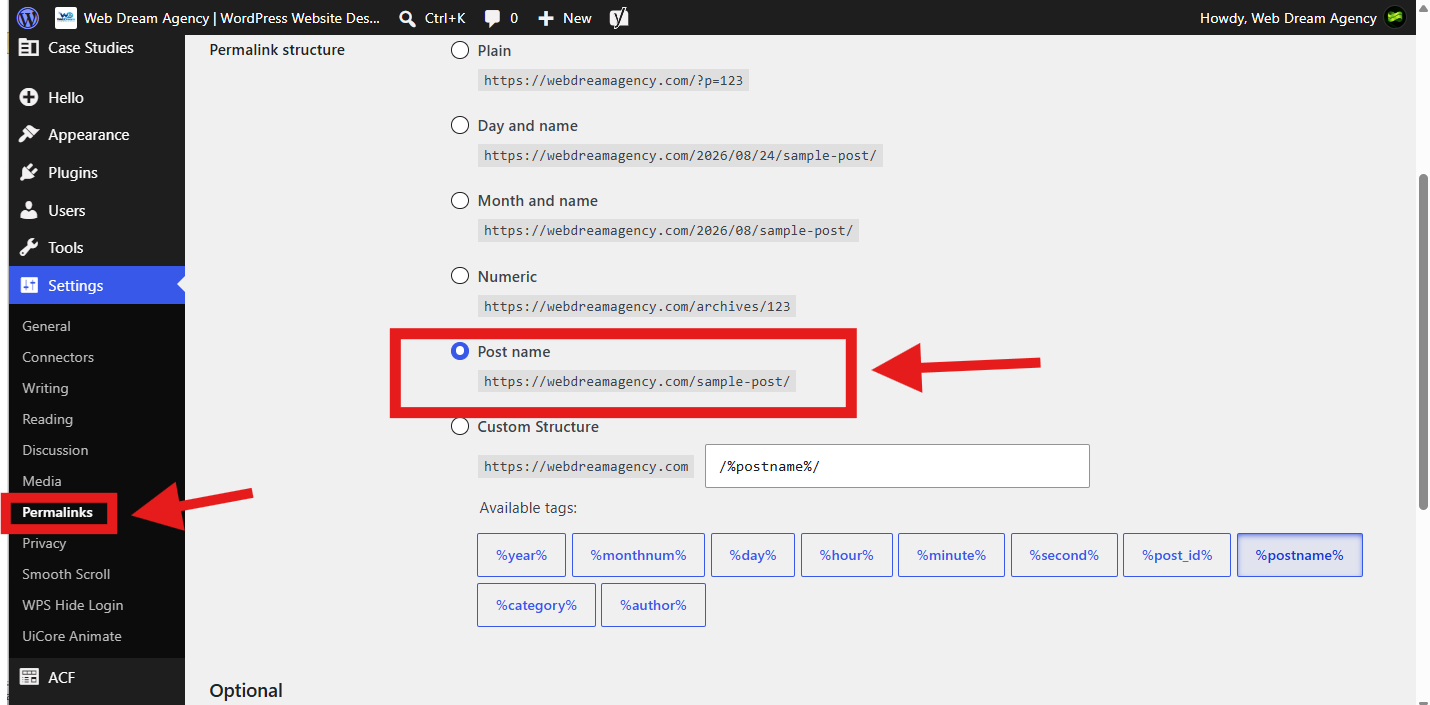
Saving this screen tells WordPress to regenerate its rewrite rules. This is also why revisiting this screen and clicking Save — even without changing anything — is the standard fix when permalinks stop working after installing a new plugin.
If you’d rather not handle this yourself, the Web Dream Agency team includes permalink and SEO health checks as part of every website build we deliver.
Editing WordPress Permalink Slugs for Individual Posts
Every individual post or page has its own editable “slug” — the final segment of the URL. In the block editor, this lives in the Permalink panel on the sidebar.
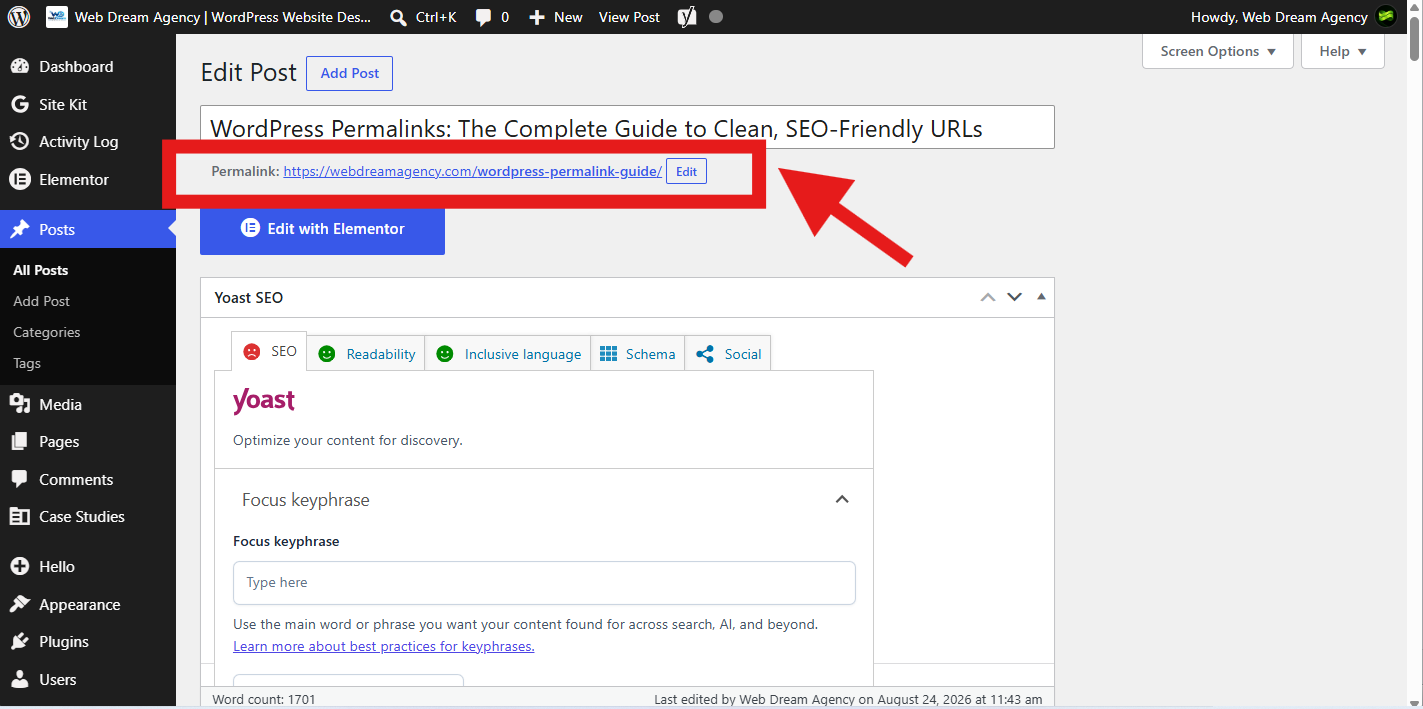
Best practice:
- Keep it short — 3 to 5 words is usually enough.
- Include your target keyword naturally, without stuffing.
- Use hyphens, not underscores.
- Avoid stop words like “the,” “and,” and “of.”
- Set the slug when you first publish — changing it later requires a redirect.
The One Mistake That Damages WordPress Permalinks
This is the part most tutorials skip. But it’s the part that actually matters for an existing business website.
If your site has already been live for a while — indexed by Google, linked to from other sites, shared on social media — changing your permalink structure will break every one of those existing links.
Visitors and search engines following the old URL will land on a 404 error page instead of your content.
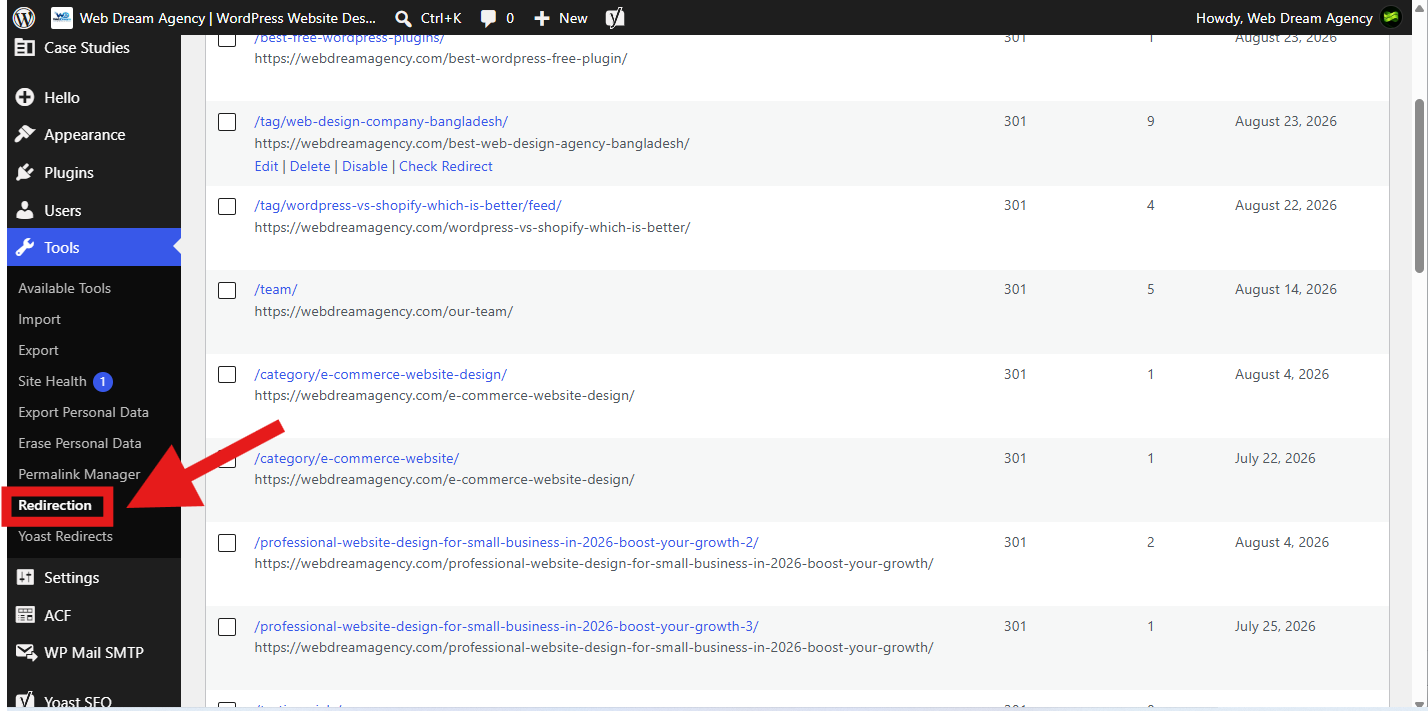
The fix is 301 redirects. This is a permanent redirect rule that automatically sends anyone using the old URL to the new one. It preserves your search rankings and keeps backlinks working.
| Scenario | Risk | Action Needed |
| New site, not yet indexed | Low | No redirects needed |
| Live site, one post’s slug | Medium | Single 301 redirect |
| Live site, entire structure | High | Bulk redirects + monitor 404s |
For most business owners, a plugin like Custom Permalinks is the simplest way to manage this. It lets you create 301 rules without touching code, and it can automatically log any 404 errors.
WordPress Permalinks for Categories, Tags, and WooCommerce
If your site uses categories or tags, their archive pages get their own permalinks too. The default pattern looks like yoursite.com/category/category-name. You can customize this in the Optional section of the Permalinks settings screen.
For online stores running WooCommerce, product permalinks have their own dedicated settings on the same screen. You can choose between a default /product/ base, a /shop/ base, or a fully custom structure.
As before: editing these on a live store should always be paired with redirects, so existing product links and rankings aren’t lost.
WordPress Permalinks and Mobile SEO
Permalink structure doesn’t just matter for desktop search results. It plays directly into mobile SEO too.
Google indexes and ranks primarily using the mobile version of your site. Shorter, cleaner URLs display better within the limited width of a mobile search snippet.
Clean permalinks also make links easier to share correctly through mobile apps and messaging, where a broken or truncated URL is a common source of lost clicks.
How WordPress Permalinks Fit Into a Bigger SEO Strategy
Permalink structure is one piece of a larger SEO picture, not a silver bullet on its own. It works alongside your page title, headings, meta description, and content quality.
Think of permalinks as removing a small friction point — not the thing that wins you a top ranking by itself.
That said, small friction points add up. A site with clean permalinks, fast page speed, and mobile-friendly design consistently outperforms one that ignores these fundamentals.
WordPress Permalink Best Practices Checklist
- Set your structure to Post name before publishing your first content.
- Keep slugs short, descriptive, and keyword-relevant.
- Never change a live URL without a 301 redirect.
- Avoid dates unless content is genuinely time-sensitive.
- Use hyphens between words, never underscores.
- Keep permalinks lowercase.
- Check your SEO plugin for 404 errors after any change.
Frequently Asked Questions About WordPress Permalinks
1. What is a WordPress permalink?
A permalink is the permanent, complete web address of a specific post, page, or piece of content.
2. What’s the difference between a permalink and a slug?
The permalink is the entire URL. The slug is just the final segment, unique to that post or page.
3. What is the best permalink structure for SEO?
For most websites, “Post name” is the best choice. It produces short, clean URLs without unnecessary dates or ID numbers.
4. Where do I change permalink settings in WordPress?
Go to Settings → Permalinks in your dashboard.
5. Will changing my permalinks hurt my SEO?
Only temporarily, and only if old URLs were already indexed without redirects set up. With 301 redirects in place, the impact is minimal.
6. What is a 301 redirect for WordPress permalinks?
It permanently forwards visitors and search engines from an old URL to a new one, preserving rankings and preventing 404 errors.
7. Do I need a plugin to change permalinks?
Not necessarily. The core structure changes natively through Settings → Permalinks. A plugin helps with advanced redirects.
8. Why did my permalinks stop working after installing a plugin?
New plugins that register custom post types often need WordPress to refresh its rewrite rules. Visit Settings → Permalinks and click Save.
9. Should I include the date in my WordPress permalink URLs?
Only if your content is genuinely time-sensitive, like breaking news. For evergreen content, dates make URLs longer and look outdated.
10. Can I edit one post’s permalink without changing the whole site?
Yes. Individual slugs can be edited directly in the post editor without affecting your site-wide structure.
11. What happens if I don’t redirect a changed WordPress permalink?
Anyone using the old link will land on a 404 error page, causing lost traffic and lost rankings for that page.
12. Are permalinks different for WooCommerce products?
Yes. WooCommerce adds its own permalink settings for products, categories, and tags in the same Permalinks screen.
13. How long should a permalink slug be?
As short as possible while still being descriptive — usually 3 to 5 words.
14. Do permalinks affect mobile search results?
Yes. Shorter permalinks display better in mobile search snippets and are less likely to be cut off.
15. Can I use categories in my permalink structure?
Yes, with a custom structure like /%category%/%postname%/. This works best for larger content sites.
16. What’s the safest time to set my permalink structure?
Before you publish your first page — ideally right after installing WordPress.
17. How do I fix broken links after a permalink change?
Check your SEO plugin or Google Search Console for 404 errors, then add a redirect rule for each one. Rank Math’s permalinks guide covers this in more depth if you want a deeper technical walkthrough.
Final Thoughts on WordPress Permalinks
Permalinks might seem like a small technical setting. But they quietly influence SEO, user trust, and click-through rate every day your site is live.
The rule of thumb is simple: choose the “Post name” structure early, keep your slugs short, and never change a live URL without a 301 redirect. Get it right once, and you won’t have to think about it again.
Need a hand auditing your site’s URLs and overall SEO setup? Get in touch with Web Dream Agency — we’re happy to take a look.