WordPress Login URL: How to Find, Change & Secure It (Complete Guide)
If you own a WordPress website, understanding the WordPress Login URL is essential. It’s the gateway to your WordPress dashboard, where you manage posts, pages, plugins, themes, users, and website settings.
Whether you run a personal blog, business website, portfolio, or WooCommerce store, you’ll use the login page almost every time you manage your site. However, many beginners don’t know where to find it, while others accidentally lock themselves out after changing the login URL.
Because every WordPress website uses the same default login page, it’s often targeted by automated bots and brute-force attacks. Changing your login URL is a simple way to improve security and reduce unwanted login attempts.
At Web Dream Agency, we’ve helped businesses build secure, fast, and SEO-friendly WordPress websites. Drawing from our experience, this guide explains how the WordPress Login URL works, why it’s important, and the best ways to keep it secure.
In this guide, you’ll learn:
- What a WordPress Login URL is
- How to find your login page
- How to change it safely
- Why changing it improves security
- Common login problems and their solutions
- Best practices to secure your WordPress website
Featured Snippet: What Is a WordPress Login URL?
A WordPress Login URL is the web address used to access the WordPress dashboard. By default, WordPress creates two login URLs: /wp-admin and /wp-login.php. Many website owners replace the default login page with a custom URL to reduce automated login attempts and strengthen website security.
What Is a WordPress Login URL?
Simply put, a wordpress login url is the unique web address you use to access the administration area of your WordPress website. To make this easier to visualize, think of your website as a building.
- For example, your homepage is the front entrance that visitors see.
- Your WordPress dashboard, on the other hand, is the control room where you manage everything behind the scenes.
- The login URL, therefore, is the secure door leading to that control room.
Without access to this page, in other words, you simply cannot:
- Publish blog posts
- Edit website pages
- Install plugins
- Update themes
- Upload images
- Manage users
- Configure SEO settings
- Change website appearance
- Install WooCommerce extensions
- Update WordPress core files
Because of this, your login URL is, without question, one of the most important addresses associated with your entire website.
Why Is the WordPress Login URL Important?
Generally speaking, many beginners assume the login page is simply where they enter a username and password. In reality, though, it’s one of the most critical parts of any WordPress website, since it directly controls access to everything your site does.
Complete Website Management
Once you log in, for instance, you’re able to:
- Create articles
- Publish pages
- Install plugins
- Update themes
- Manage WooCommerce products
- Moderate comments
- Upload media
- Configure settings
- Monitor website performance
In other words, everything on your website begins with a successful login.
Website Security
The default WordPress login page is a common target for automated bots and brute-force attacks. Since most WordPress websites use the same login URLs, attackers can easily identify them and attempt thousands of password combinations. Changing your WordPress Login URL, along with using a strong password, helps reduce these attacks and improves your website’s overall security.
Team Collaboration
If multiple people manage your website, similarly, everyone signs in through the same login page. Fortunately, WordPress supports several different user roles, including:
- Administrator
- Editor
- Author
- Contributor
- Subscriber
As a result, each role comes with specific permissions, which significantly reduces the risk of accidental changes to your site.
Default WordPress Login URLs
Every WordPress installation includes two default login URLs. Both allow you to access your WordPress dashboard.
Option 1: /wp-admin
Example:
https://yourdomain.com/wp-admin
If you’re already logged in, this URL takes you directly to the WordPress dashboard. If not, WordPress redirects you to the login page.
Option 2: /wp-login.php
Example:
https://yourdomain.com/wp-login.php
This URL always opens the WordPress login page, where you can enter your username and password.
Both URLs provide access to the same dashboard. The only difference is that /wp-admin checks whether you’re already logged in, while /wp-login.php always displays the login form.
How to Find Your WordPress Login URL
Finding your WordPress Login URL is simple. Here are the four most common ways to access your login page.
Method 1: Use /wp-admin
Open your web browser and visit:
https://yourdomain.com/wp-admin
If you’re already logged in, you’ll be taken directly to the WordPress dashboard. Otherwise, WordPress will redirect you to the login page.
Method 2: Use /wp-login.php
If the first method doesn’t work, try:
https://yourdomain.com/wp-login.php
This is the second default login URL created by WordPress and always opens the login page.
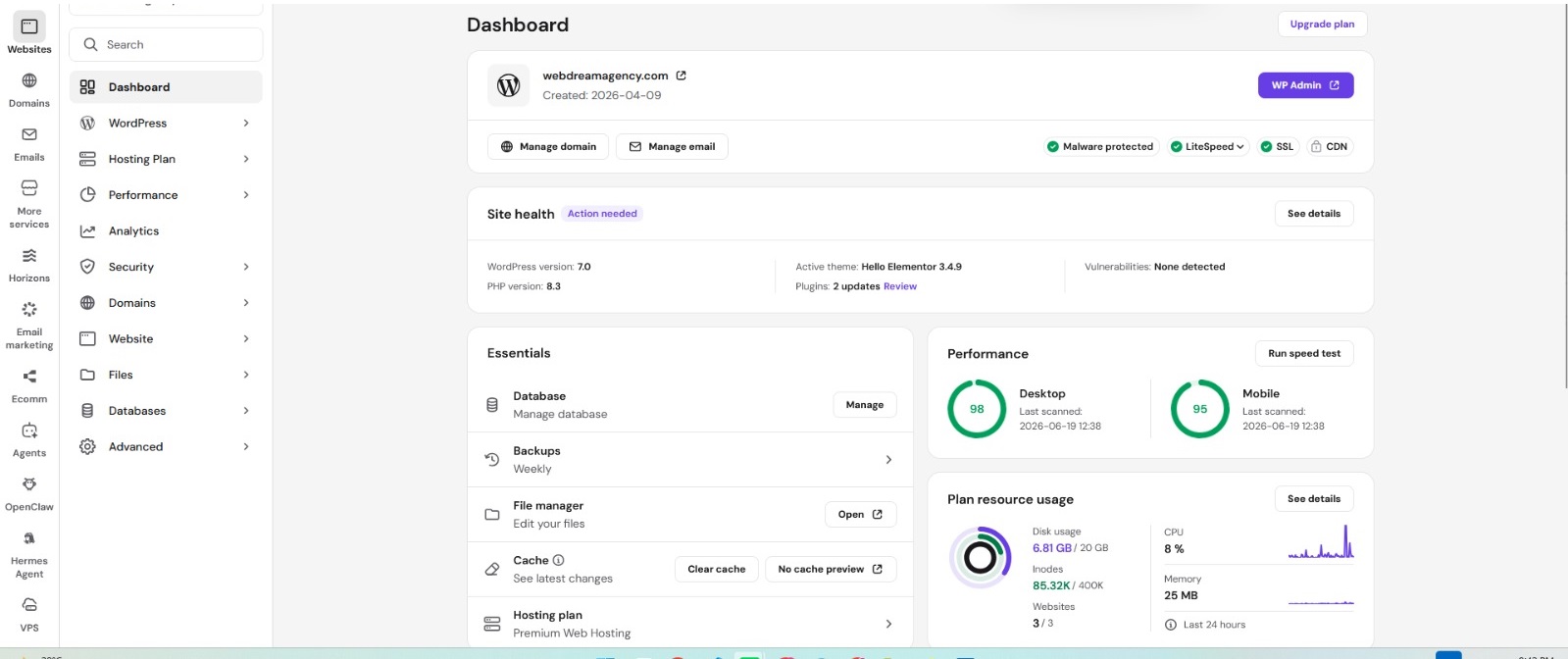
Many hosting providers offer a one-click WordPress login feature. Sign in to your hosting account, open the WordPress management section, and access your dashboard without entering the login URL manually.
This method is especially helpful if you’ve forgotten your custom login URL.
Method 4: Ask Your Developer
Some developers replace the default login URL during website setup to improve security. If someone else built your website, ask them for the current login URL.
If your website was developed by Web Dream Agency, our team can help you recover your login URL and recommend additional security improvements to keep your website protected.
WordPress Login Page vs WordPress Dashboard
Admittedly, these two terms are often confused by beginners, so it’s worth clarifying the difference right away.
WordPress Login Page
Specifically, this page contains only:
- A username field
- A password field
- A “Remember Me” option
- A “Lost Password” link
Its sole purpose, therefore, is to authenticate users before granting access.
WordPress Dashboard
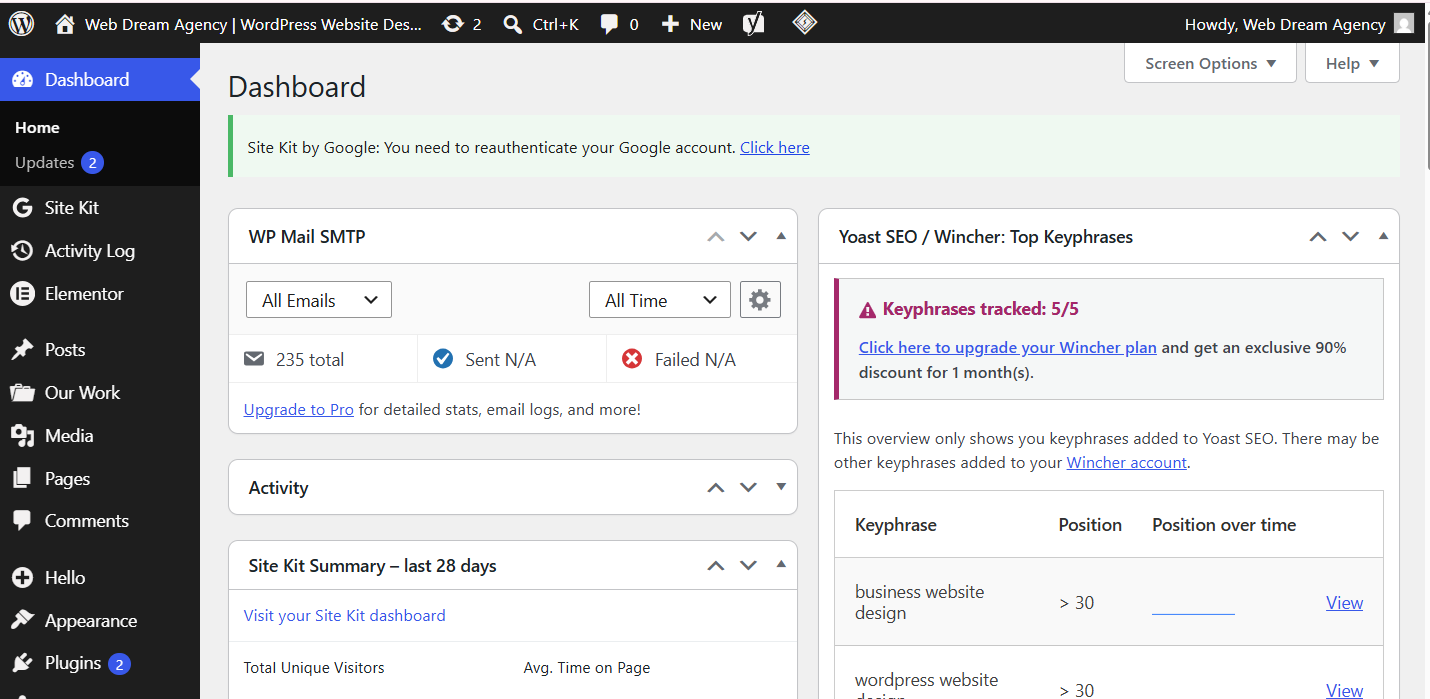
Once you log in successfully, however, you’ll enter the WordPress Dashboard. This is where you can:
- Write blog posts
- Edit pages
- Install plugins
- Manage themes
- Configure SEO
- Upload media
- View updates
- Manage users
Put simply, the dashboard is the true control center of your entire website.
Common Login Problems
Even so, even experienced users run into login issues from time to time. Below, specifically, are the most common problems WordPress users experience, along with practical solutions.
Incorrect Password
First and foremost, always double-check your password before trying again. If necessary, then, use the “Lost your password?” option to reset it quickly.
Wrong Login URL
A common mistake is trying to access the login page through https://yourdomain.com/login. Since WordPress doesn’t create this URL by default, you’ll need to use one of these login addresses instead:
Login URL Has Been Changed
If you’ve installed a security plugin, meanwhile, your default login page may no longer work at all. In that case, you’ll need to use your custom login URL instead. If you don’t remember it, though, don’t worry — your hosting account or website developer can help you recover access without much trouble.
Why Do Website Owners Change Their Login URL?
Overall, changing the default wordpress login url is a simple, yet remarkably effective, security improvement. While it certainly won’t stop every cyberattack, it does, at least, prevent many automated bots from ever finding your login page in the first place.
Furthermore, when combined with strong passwords, two-factor authentication, regular backups, and a trusted security plugin, changing your login URL significantly improves the overall security of your WordPress website.
Now that you understand what a wordpress login url is and why it matters so much, therefore, it’s time to learn exactly how to change it safely.
Things to Do Before Changing Your Login URL
Before making any changes, first, it’s essential to follow these preparatory steps.
1. Create a Complete Website Backup
Above all, never make major changes without creating a full backup beforehand. Specifically, your backup should include:
- WordPress files
- Database
- Themes
- Plugins
- Media library
That way, if something goes wrong, you can restore your website within minutes rather than hours.
2. Update WordPress
Also, always update the following before making changes:
- WordPress core
- Installed plugins
- Active theme
Otherwise, using outdated software increases security risks and may even cause plugin conflicts down the line.
3. Save Your Current Login Details
Before changing your login page, additionally, be sure to save:
- Username
- Password
- Administrator email
- Current login URL
Ideally, this information should be stored in a trusted password manager for safekeeping.
Best Plugins to Change Your WordPress Login URL
Fortunately, several reliable plugins allow you to change your wordpress login url without ever needing to edit a single file. Below, specifically, are the most trustworthy options available today.
1. WPS Hide Login
To start, WPS Hide Login remains one of the most popular plugins for changing the WordPress login page, and for good reason.
Advantages:
- Beginner friendly
- Lightweight
- No coding required
- Free plugin
- Compatible with most themes
- Regular updates
Essentially, this plugin simply changes the login URL without modifying any WordPress core files, which makes it a safe first choice for most site owners.
2. Solid Security (Formerly iThemes Security)
Meanwhile, Solid Security offers much more than just a login URL feature. It also includes:
- Two-factor authentication
- Brute force protection
- Malware detection
- Login monitoring
- Security logs
- User lockout
Consequently, this plugin is generally recommended for business websites that need a more comprehensive security solution.
3. All In One WP Security & Firewall
Additionally, another excellent option is All In One WP Security & Firewall, which includes:
- Login protection
- Firewall
- Spam protection
- Database security
- Login lockdown
- File protection
If you’re looking for a true all-in-one security solution, then, this plugin is certainly worth considering as well.
Plugin Comparison Table
| Plugin | Beginner Friendly | Free Version | Change Login URL | Extra Security Features |
|---|---|---|---|---|
| WPS Hide Login | ⭐⭐⭐⭐⭐ | Yes | Yes | Basic |
| Solid Security | ⭐⭐⭐⭐☆ | Yes | Yes | Advanced |
| All In One WP Security | ⭐⭐⭐⭐☆ | Yes | Yes | Advanced |
How to Change Login URL Using WPS Hide Login
WPS Hide Login is one of the easiest plugins for changing your WordPress Login URL. It doesn’t modify WordPress core files, making it a safe and beginner-friendly option.
Step 1: Install the Plugin
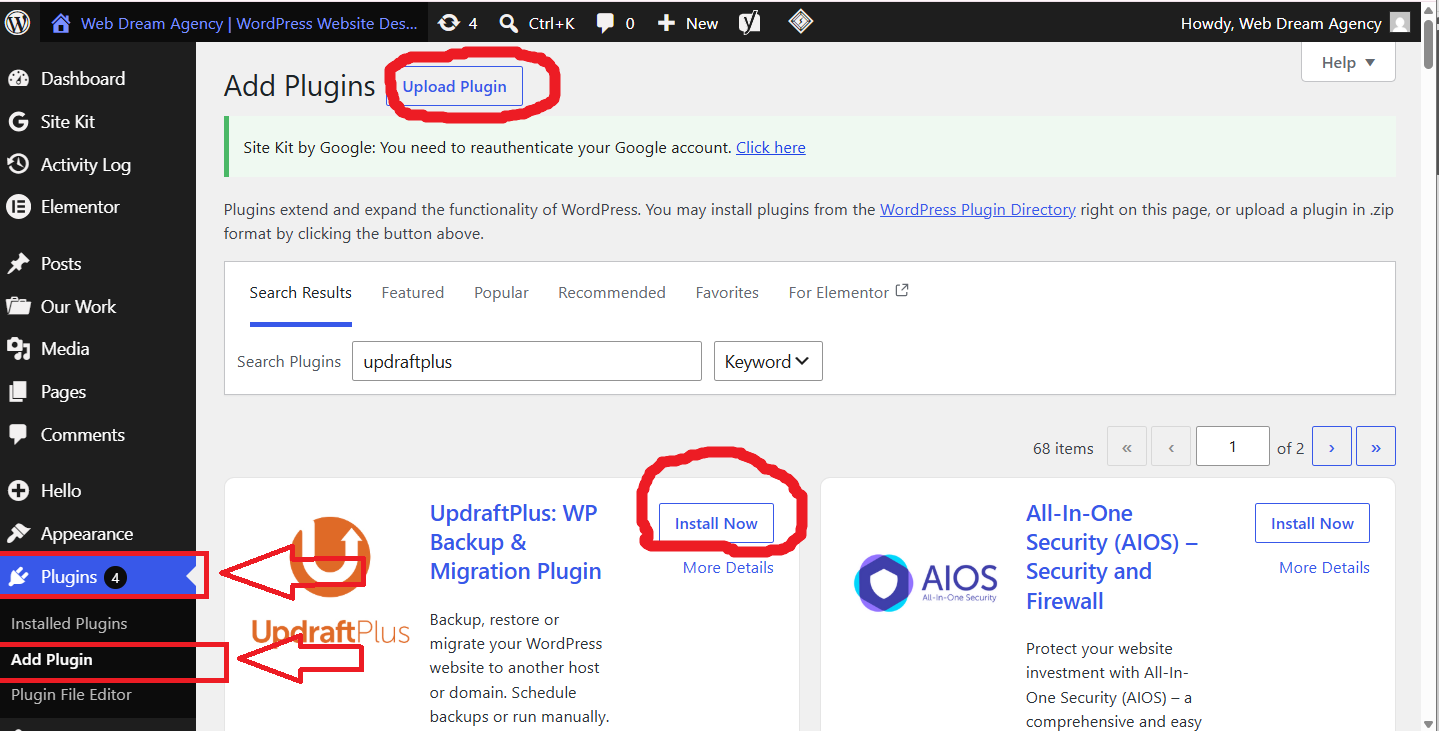
Log in to your WordPress Dashboard and go to Plugins → Add New. Search for WPS Hide Login, then install and activate the plugin.
Step 2: Create a Custom Login URL
After activation, navigate to Settings → WPS Hide Login. Enter your preferred custom login URL in the available field.
Instead of using the default URL:
yourdomain.com/wp-admin
Choose something unique, such as:
- yourdomain.com/myportal
- yourdomain.com/secure-login
- yourdomain.com/admin-access
Avoid using common names like:
- login
- admin
- dashboard
A unique login URL is much harder for automated bots to guess.
Step 3: Save Your Changes
Click Save Changes to activate your new login URL. Once the changes are saved, the default login pages, such as /wp-admin and /wp-login.php, will no longer work. You’ll need to use your new custom login URL whenever you want to access the WordPress dashboard.
How to Change Login URL Using Solid Security
Likewise, if you’re already using Solid Security, the process is just as straightforward.
- First, install and activate the plugin.
- Then, open the Security Dashboard.
- Next, locate the “Hide Backend” feature.
- After that, enable the option.
- Then, enter your custom login URL.
- Finally, click “Save.”
Once saved, your new login page will become active immediately.
How to Choose a Secure Login URL
A custom login URL adds an extra layer of protection to your WordPress website. Avoid using common and easy-to-guess URLs such as:
- login
- wp-login
- admin
- dashboard
Instead, choose a unique login URL, for example:
- secure-office
- company-portal
- login2026
- access-panel
- admin-secure
A unique and hard-to-guess login URL can help reduce automated login attempts and make it more difficult for attackers to target your website.
What Happens After You Change the Login URL?
Once you’ve changed your wordpress login url, specifically, the old default addresses will no longer work. For instance:
- ❌ yourdomain.com/wp-admin
- ❌ yourdomain.com/wp-login.php
Instead, you’ll use your new custom URL whenever you want to access the WordPress dashboard going forward. This simple change, in turn, helps reduce automated brute-force login attempts significantly.
How to Recover If You Forget Your Login URL
Admittedly, forgetting your custom login page is more common than most people think. Fortunately, though, there are several recovery methods available.
Method 1: Check Your Password Manager
First, if you saved the new login URL previously, simply open your password manager to retrieve it.
Method 2: Disable the Plugin
If you can’t access your WordPress website, follow these steps:
- Log in to your hosting account.
- Open the File Manager.
- Navigate to wp-content → plugins.
- Locate the wps-hide-login plugin folder.
- Rename it to wps-hide-login-disabled.
Renaming the plugin folder temporarily disables the plugin and restores the default WordPress login page, allowing you to log in again.
Method 3: Restore Website Backup
Finally, if nothing else works, restoring your latest website backup remains the safest fallback option.
Common Mistakes to Avoid
To keep your website secure long-term, therefore, be sure to avoid these common mistakes after changing your login page.
- Sharing your login URL: Only share your custom login page with trusted users.
- Using weak passwords: Changing the login URL is not enough on its own — always use a strong password too.
- Forgetting backups: Never change important settings without creating a backup first.
- Ignoring updates: Keep WordPress, themes, and plugins updated at all times to maintain website security.
Expert Tip
Overall, changing your wordpress login url is only one part of WordPress security. For the best possible protection, therefore, combine it with:
- Two-factor authentication (2FA)
- Strong passwords
- Login attempt limits
- Daily website backups
- SSL certificate (HTTPS)
- Trusted security plugins
- Regular WordPress updates
Altogether, following these best practices creates multiple layers of security, which makes your WordPress website far more difficult for attackers to compromise.
Advanced WordPress Security Tips
Indeed, changing your wordpress login url is undoubtedly a smart security improvement, but it should only be one part of a complete security strategy. In fact, professional WordPress websites use multiple layers of protection in order to reduce the risk of hacking, malware infections, and unauthorized access altogether.
Below, specifically, are the most effective security practices every WordPress website owner should follow.
1. Enable Two-Factor Authentication (2FA)
To start, two-factor authentication (2FA) adds an extra verification step after entering your username and password. Rather than relying solely on your password, you’ll also verify your identity using an authentication app or email verification. For example, popular authentication apps include Google Authenticator, Microsoft Authenticator, and Authy. Even so, even if someone manages to steal your password, they still cannot log in without the second verification code.
2. Use Strong Passwords
Similarly, weak passwords remain one of the biggest reasons WordPress websites get hacked in the first place. Generally, a secure password should contain:
- Uppercase letters
- Lowercase letters
- Numbers
- Special characters
- At least 12–16 characters
A strong password is your first line of defense against unauthorized access. Avoid using common passwords such as:
- admin123
- password
- 12345678
Instead, create a strong, unique password or use a trusted password manager to generate one for you.
3. Limit Login Attempts
By default, unfortunately, WordPress allows unlimited login attempts, which is far from ideal. Since hackers use automated bots to test thousands of password combinations, therefore, installing a security plugin that limits login attempts helps block these attacks automatically.
4. Keep Everything Updated
Additionally, always update your WordPress core, themes, plugins, and PHP version. After all, updates frequently include important security fixes that protect your website against newly discovered vulnerabilities.
5. Install a Trusted Security Plugin
Furthermore, a good security plugin provides additional protection, including a malware scanner, firewall, login activity monitoring, file change detection, brute force protection, and security alerts. Together, these features work alongside your custom wordpress login url to improve your website’s overall security.
6. Enable SSL (HTTPS)
Finally, every WordPress website should use an SSL certificate. Essentially, HTTPS encrypts communication between your visitors and your server, which protects login credentials and other sensitive information. Fortunately, most hosting companies now provide free SSL certificates by default.
Common WordPress Login Errors and Solutions
Even so, even experienced users sometimes face login issues. Below, specifically, are the most common problems, along with practical solutions for each.
White Screen After Login
Generally, possible causes include plugin conflicts, theme conflicts, or a low PHP memory limit. To resolve this, therefore, try disabling plugins one by one, or temporarily switch to a default WordPress theme to isolate the issue.
Too Many Login Attempts
If your IP address is temporarily blocked, simply wait for the lockout period to end. Alternatively, contact your website administrator, or add your IP address to an allowlist if needed.
Lost Administrator Access
If you lose administrator access, first, try resetting your password. If that doesn’t work, then, restore a recent backup, use phpMyAdmin to reset your password directly, or contact your hosting provider for further assistance.
Frequently Asked Questions (FAQ)
1. What is the default WordPress login URL? The default login addresses, specifically, are yourdomain.com/wp-admin and yourdomain.com/wp-login.php.
2. Can I change my WordPress login URL? Yes. Specifically, you can safely change it using plugins such as WPS Hide Login or Solid Security.
3. Is changing the login URL good for security? Yes. Namely, it reduces automated brute-force attacks by hiding the default login page from bots.
4. Can I change my login URL without coding? Absolutely. In fact, most security plugins let you change the login page with just a few clicks.
5. What happens if I forget my custom login URL? In that case, you can disable the plugin through File Manager, restore a backup, or contact your website developer for help.
6. Does changing the login URL affect SEO? No. Specifically, search engines never use your WordPress admin login page for indexing or ranking purposes.
7. Should beginners change the login URL? Yes. In fact, even beginners should change the default login URL shortly after installing WordPress.
8. Which plugin is best for changing the login URL? Generally, popular choices include WPS Hide Login, Solid Security, and All In One WP Security & Firewall.
9. Can hackers still find my login page? Although changing the wordpress login url reduces automated attacks, no security method is ever completely foolproof. Therefore, always combine it with strong passwords, 2FA, and regular updates.
10. How often should I update WordPress? Ideally, check for updates every week, and, above all, install critical security updates as soon as possible.
Final Summary
Overall, your wordpress login url is one of the most important parts of your entire WordPress website. After all, it allows authorized users to access the dashboard and manage every aspect of the site. Although the default login URLs work perfectly well, changing them additionally provides an extra layer of security against automated attacks.
When combined with strong passwords, two-factor authentication, login attempt limits, SSL, regular backups, and trusted security plugins, therefore, your website becomes significantly more secure overall. Whether you’re a beginner or an experienced website owner, following the steps in this guide will help you protect your website while still maintaining easy access to your WordPress dashboard.
At Web Dream Agency, we provide professional WordPress development, website security, SEO optimization, maintenance, and performance services. Whether you’re starting a new project or improving an existing website, our team is here to help you build a secure, fast, and SEO-friendly WordPress site.
Key Takeaways
- ✔ Know your default WordPress login URL.
- ✔ Change the default login page for better security.
- ✔ Use a trusted security plugin.
- ✔ Enable two-factor authentication.
- ✔ Create regular backups.
- ✔ Install SSL.
- ✔ Keep WordPress updated.
- ✔ Use strong passwords.
- ✔ Monitor login activity regularly.
- ✔ Review your website security every month.
Conclusion
Ultimately, understanding and protecting your wordpress login url is essential for every WordPress website owner. A secure login page, after all, reduces unnecessary risks, protects your dashboard from unauthorized access, and helps maintain the long-term health of your website.
By following the strategies shared in this guide, therefore, you can confidently manage your WordPress site while improving both security and user experience at the same time. Remember, though, that website security is an ongoing process — not a one-time task. Regular maintenance, updates, backups, and monitoring will, therefore, keep your website safe for years to come.