How to Add a WordPress Contact Form (Step-by-Step Guide)
A WordPress contact form is one of the first things your visitors look for when they’re ready to reach out. Without one, however, you’re losing leads to a competitor whose site makes it easy to get in touch. Fortunately, WordPress doesn’t include a contact form by default, but adding one takes less than 10 minutes with the right plugin.
In this guide, we’ll cover what a contact form actually is, why it matters, the best plugins to use, and how to fix the most common setup problems.
What Is a WordPress Contact Form?
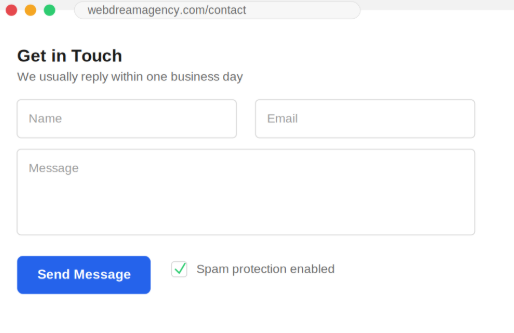
A WordPress contact form is a set of fields — usually name, email, and message — that visitors fill out directly on your site. Once submitted, the form sends the message straight to your inbox without ever exposing your real email address on the page. Since WordPress core doesn’t include this feature, it’s added through a plugin like WPForms or Contact Form 7.
Benefits of Using a Contact Form
- Keeps your email private. Because your address never appears in the page source, spam bots can’t scrape it.
- Structured leads. Instead of a random inbox message, you get name, email, and message in a consistent format.
- Builds trust. A working contact form signals a professional, well-maintained website.
- Better conversion tracking. Additionally, most plugins let you connect form submissions to Google Analytics or a CRM.
- Reduces missed inquiries. As a result, auto-notifications and confirmation emails mean fewer leads slip through the cracks.
WPForms vs Contact Form 7 vs Forminator
| Plugin | Best For | Ease of Use | Notes |
|---|---|---|---|
| WPForms Lite | Beginners | Drag-and-drop, no coding | Ready-made templates, built-in spam protection |
| Contact Form 7 | Developers | Requires HTML-style tags | 100% free, highly flexible, minimal built-in styling |
| Forminator | Advanced free features | Drag-and-drop | Free calculators, quizzes, and payment integrations |
Overall, WPForms is the easiest starting point for most small business sites. On the other hand, developers who want full control over markup often prefer Contact Form 7.
Step 1: Install the Plugin
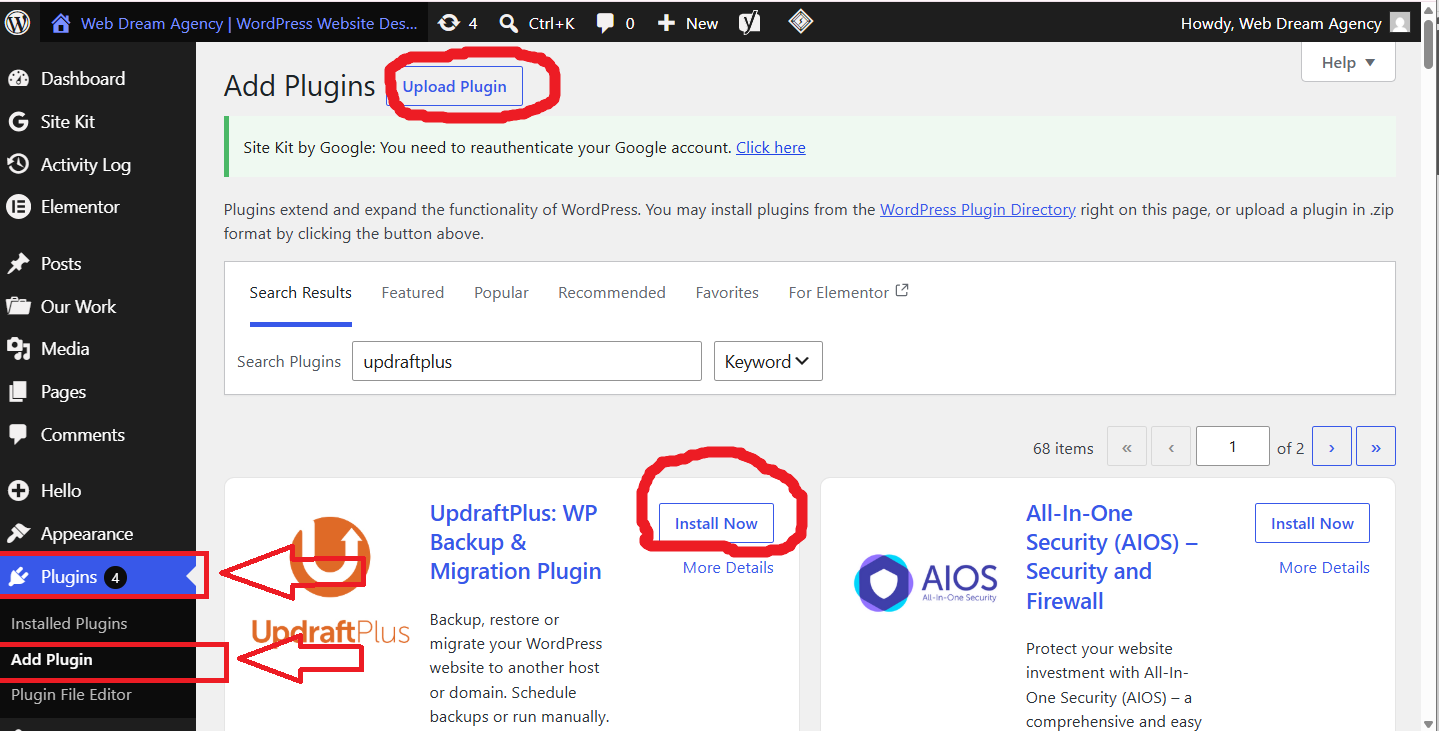
- Log in to your WordPress dashboard.
- Go to Plugins > Add New.
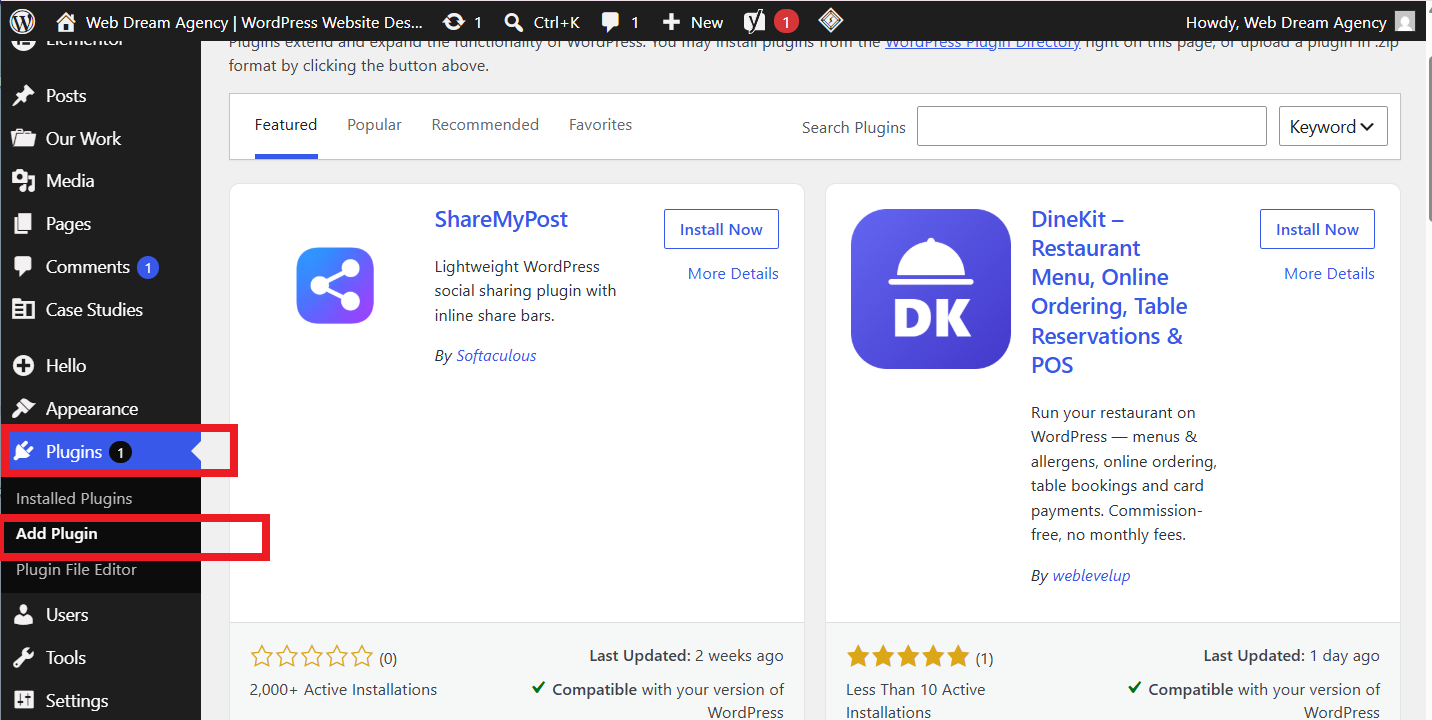
- Search for WPForms.
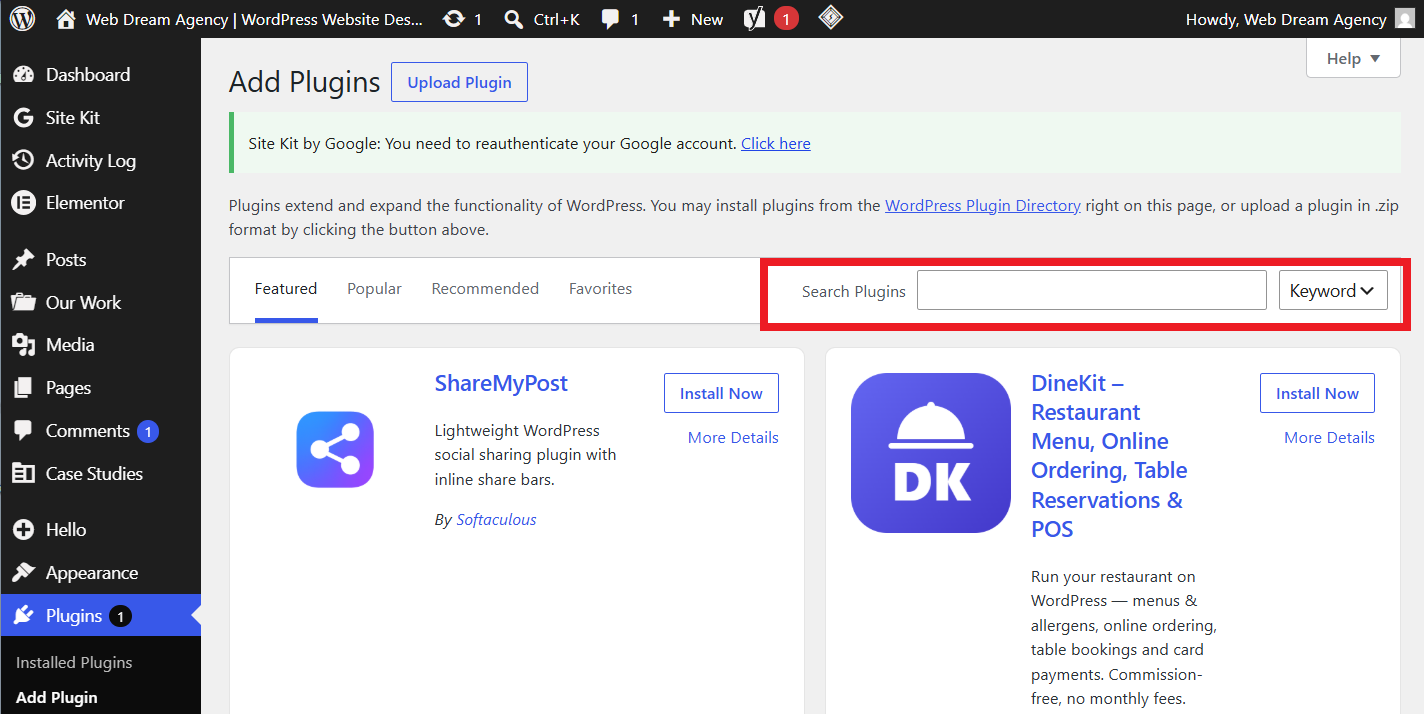
- Click Install Now, then Activate.
Step 2: Build Your Form
Next, go to WPForms > Add New and choose the Simple Contact Form template. If needed, drag in extra fields such as a phone number, dropdown, or file upload. Finally, click Save.
Step 3: Add the Form to a Page
To display the form, go to Pages > Add New (or open your existing Contact page).
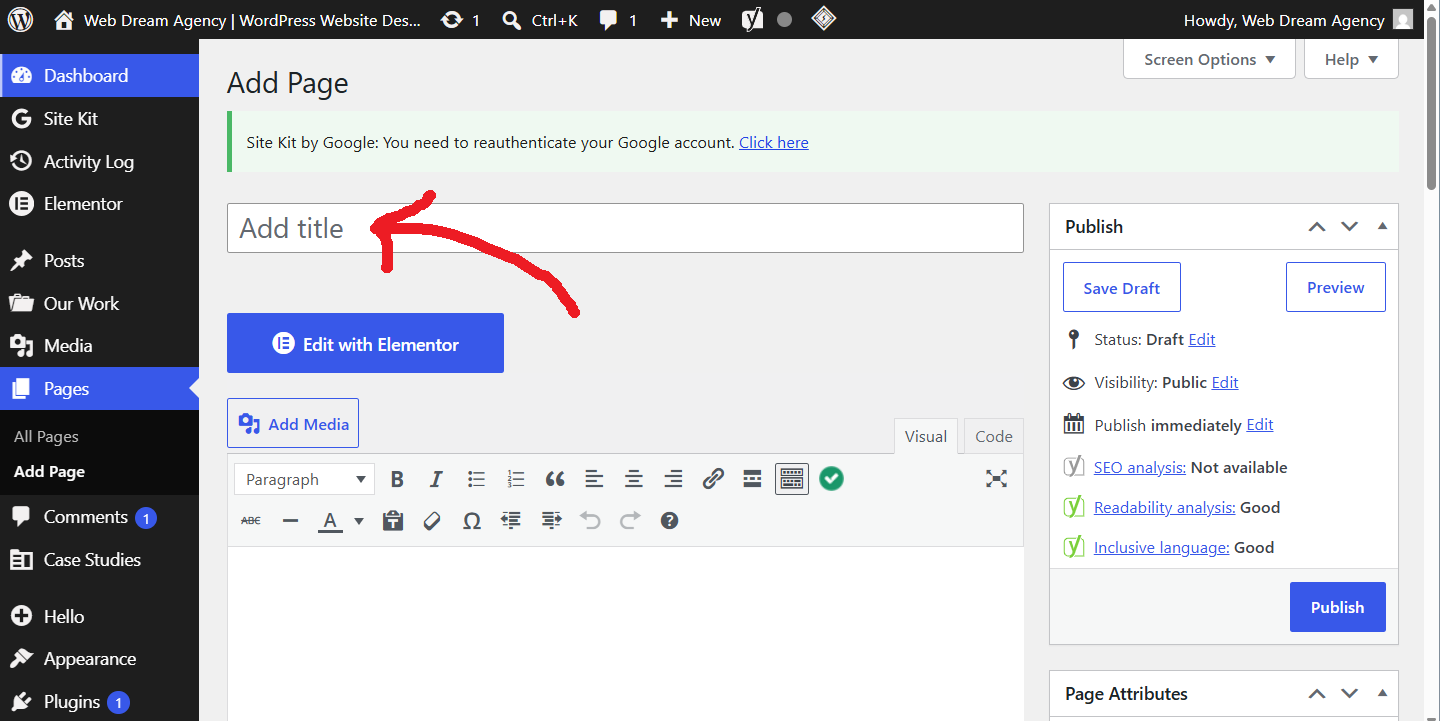
Then click the + block icon and search for the WPForms block. After selecting it, choose your form from the dropdown and click Publish.
How to Add reCAPTCHA to Your Contact Form
Spam submissions are the biggest headache with any contact form, but reCAPTCHA blocks most bots before they can submit.
- First, go to Google reCAPTCHA and register your site to get a Site Key and Secret Key.
- Then, in WordPress, go to WPForms > Settings > CAPTCHA.
- Next, select reCAPTCHA (v2 or v3) and paste in your Site Key and Secret Key.
- Afterward, open your form, go to the Settings tab, and enable Enable anti-spam protection.
- Finally, save and test the form on the live page.
How to Fix Email Delivery Issues with SMTP
If form submissions aren’t showing up in your inbox, the problem is almost always email deliverability rather than the form itself. This happens because WordPress’s default mail function is unreliable and often flagged as spam.
- Start by installing an SMTP plugin like WP Mail SMTP.
- Then connect it to a real mail provider — Gmail, Outlook, SendGrid, or your hosting email.
- Once connected, go to WP Mail SMTP > Email Test and send a test email.
- Check that the test email arrives in your inbox, including the spam folder.
- Finally, re-test your contact form to confirm notifications now come through.
Troubleshooting Common Issues
- Form submits but no email arrives: Setting up SMTP (see above) fixes this in most cases.
- Form won’t submit at all: Try checking for JavaScript conflicts by disabling other plugins one by one.
- reCAPTCHA not showing: Double-check that the Site Key and Secret Key are pasted correctly with no extra spaces.
- Confirmation message doesn’t show: Look at the form’s Confirmations settings, since it may be redirecting to a broken URL.
- Spam still getting through: Consider switching from reCAPTCHA v2 to v3, or add a honeypot field instead.
Frequently Asked Questions
General Questions
Does WordPress have a built-in contact form? No. WordPress core doesn’t include a contact form, so you need a plugin like WPForms or Contact Form 7.
Is WPForms free? Yes, WPForms Lite is free and covers most small business needs. However, paid versions add features like payments and file uploads.
Can I add a contact form without a plugin? Technically yes, using custom PHP code, but this requires development skills and ongoing maintenance. Therefore, a plugin is safer and faster for most site owners.
Which is better, WPForms or Contact Form 7? It depends on your comfort level. WPForms suits beginners since it needs no coding, while Contact Form 7 gives developers more control over the markup.
Can I add a contact form to my homepage instead of a separate page? Yes. Since the WPForms block works on any page or post, you can embed the form directly on your homepage if you prefer.
Can I customize the fields on my contact form? Absolutely. Most form builders let you drag in additional fields like phone number, dropdown, checkbox, or file upload beyond the default name, email, and message fields.
Setup and Troubleshooting Questions
Why am I not receiving contact form emails? This is almost always a deliverability issue rather than a form issue. Typically, installing an SMTP plugin like WP Mail SMTP resolves it.
How do I stop contact form spam? Simply enable reCAPTCHA or Akismet in your form’s spam protection settings.
Do I need reCAPTCHA if I already use Akismet? Not necessarily, but combining both often gives the strongest spam protection, especially on high-traffic sites.
How do I know if my contact form is actually working? Submit a test message yourself and confirm it arrives in your inbox. If it doesn’t, check your SMTP settings first.
Will a contact form slow down my website? Generally, no. Lightweight plugins like WPForms have minimal impact on page speed when configured properly.
Final Thoughts
Ultimately, a working, spam-free WordPress contact form is a small setup task with an outsized impact on lead generation. Once it’s live, test it yourself by submitting a message and confirming it lands in your inbox.
Need help setting up or optimizing your website’s contact form? Web Dream Agency builds fast, conversion-focused WordPress sites for clinics, agencies, and local businesses.