Best WordPress Cache Plugin: Full Comparison & Setup Guide
A WordPress cache plugin stores a ready-to-serve version of your page so the server doesn’t rebuild it from PHP and database queries on every visit. As a result, this is the single fastest way to cut Time to First Byte (TTFB) and improve Core Web Vitals without touching your theme or hosting plan.
However, there is no universal “best” WordPress cache plugin. Instead, the right choice depends on your server stack. Below is the direct answer, followed by the reasoning.
Quick answer:
- LiteSpeed hosting → LiteSpeed Cache (free, server-level caching)
- Any other hosting, budget available → WP Rocket (paid, zero-config)
- Any hosting, free only → WP Super Cache or Cache Enabler
What a WordPress Cache Plugin Actually Does
First, it helps to understand the problem. WordPress generates pages dynamically: PHP runs, MySQL queries execute, and the theme assembles HTML — every single time a browser requests a page. Because of this, a cache plugin intercepts the process and stores the finished HTML file after the first request, then serves that static file to every visitor afterward.
Consequently, this removes three layers of server work per visit:
| Layer | Without Caching | With Caching |
|---|---|---|
| Database queries | Runs on every request | Skipped entirely |
| PHP execution | Runs on every request | Skipped entirely |
| Server response (TTFB) | 400–1500ms typical | 20–200ms typical |
For this reason, installing a good WordPress cache plugin is usually the highest-leverage fix for a slow site — before minification, before image compression, and before a CDN.
Types of Caching (and Why Plugins Differ)
In fact, a cache plugin can operate at different layers, and understanding this explains why some plugins outperform others on identical hosting:
- Page cache — stores the full rendered HTML page. Every plugin below does this.
- Object cache — stores database query results in memory (Redis/Memcached), so dynamic content such as carts and logged-in views stays fast.
- Browser cache — instructs visitors’ browsers to store static assets (CSS/JS/images) locally via cache headers.
- CDN/edge cache — stores the page on servers geographically close to the visitor, cutting network latency separately from server latency.
Overall, most plugins handle page cache and browser cache well, but fewer handle object cache properly. Either way, none of them replace a CDN — instead, they work alongside one.
Best WordPress Cache Plugins Compared
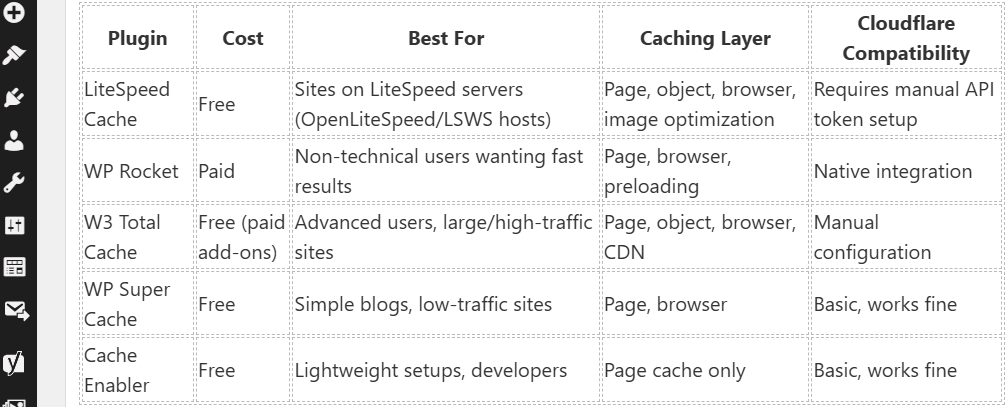
| Plugin | Cost | Best For | Caching Layer | Cloudflare Compatibility |
|---|---|---|---|---|
| LiteSpeed Cache | Free | Sites on LiteSpeed servers (OpenLiteSpeed/LSWS hosts) | Page, object, browser, image optimization | Requires manual API token setup |
| WP Rocket | Paid | Non-technical users wanting fast results | Page, browser, preloading | Native integration |
| W3 Total Cache | Free (paid add-ons) | Advanced users, large/high-traffic sites | Page, object, browser, CDN | Manual configuration |
| WP Super Cache | Free | Simple blogs, low-traffic sites | Page, browser | Basic, works fine |
| Cache Enabler | Free | Lightweight setups, developers | Page cache only | Basic, works fine |
Note on LiteSpeed Cache + Cloudflare: if your host runs LiteSpeed and you also proxy through Cloudflare, then you must generate a scoped Cloudflare API token and connect it inside the plugin’s CDN tab. Otherwise, skipping this step is the most common cause of a “No available Cloudflare zone” error, and as a result, it leaves your site serving stale or uncached pages at the edge even though origin caching works fine.
How to Choose the Right Cache Plugin for Your Site
To simplify the decision, answer these three questions in order — the first one that applies decides the plugin:
- Is your host running LiteSpeed? (Check your hosting control panel or ask support.) If so, use LiteSpeed Cache, since it caches at the web-server level, which is faster than the PHP-level caching any other plugin can offer on that stack.
- Do you want zero manual configuration and are willing to pay? If yes, then WP Rocket is the better fit, because most settings are safe on default.
- Do you need a free plugin on standard Apache/Nginx hosting? In that case, choose WP Super Cache for simplicity, or W3 Total Cache if you also need object caching and are comfortable with more settings.
Importantly, running two full-page cache plugins at once causes conflicts, such as duplicate cache files and invalidation failures — therefore, install only one WordPress cache plugin at a time.
Step-by-Step Setup (LiteSpeed Cache Example)
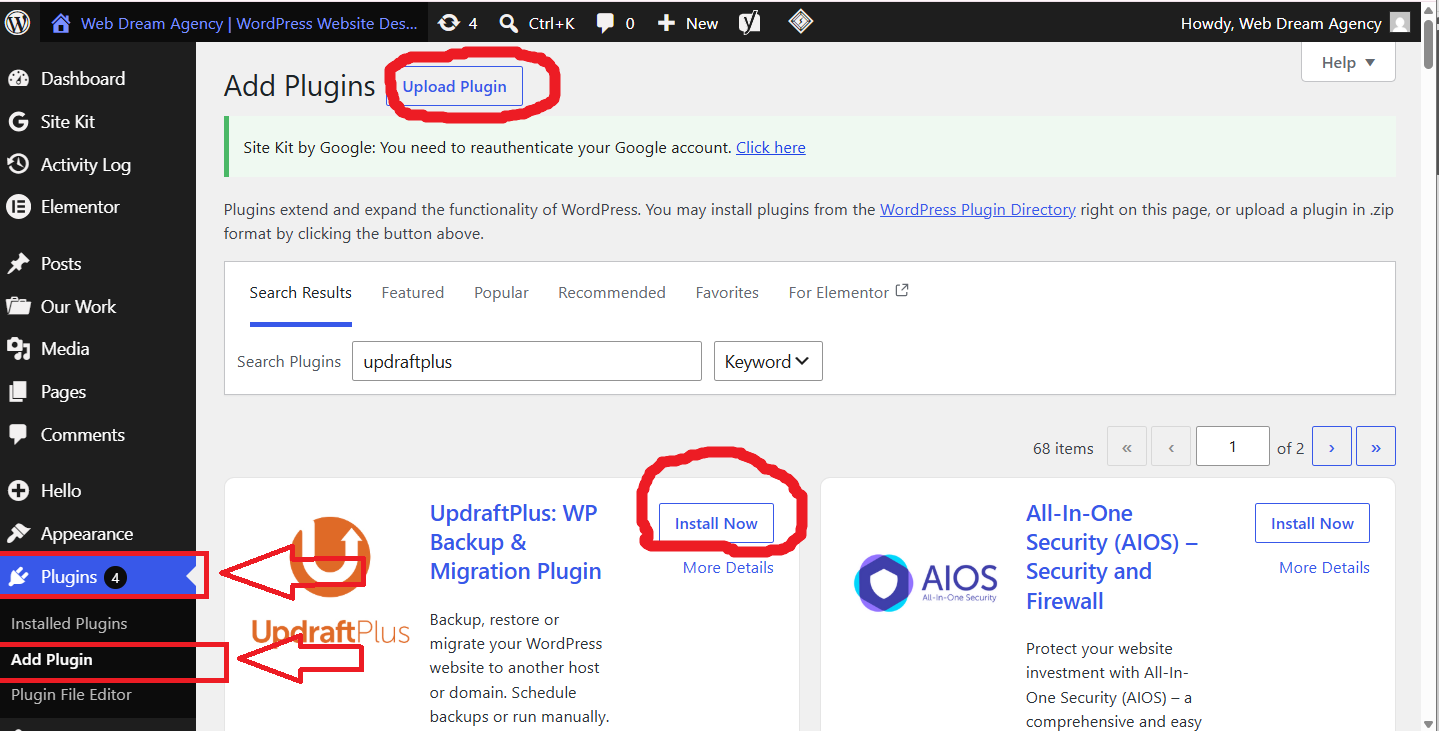
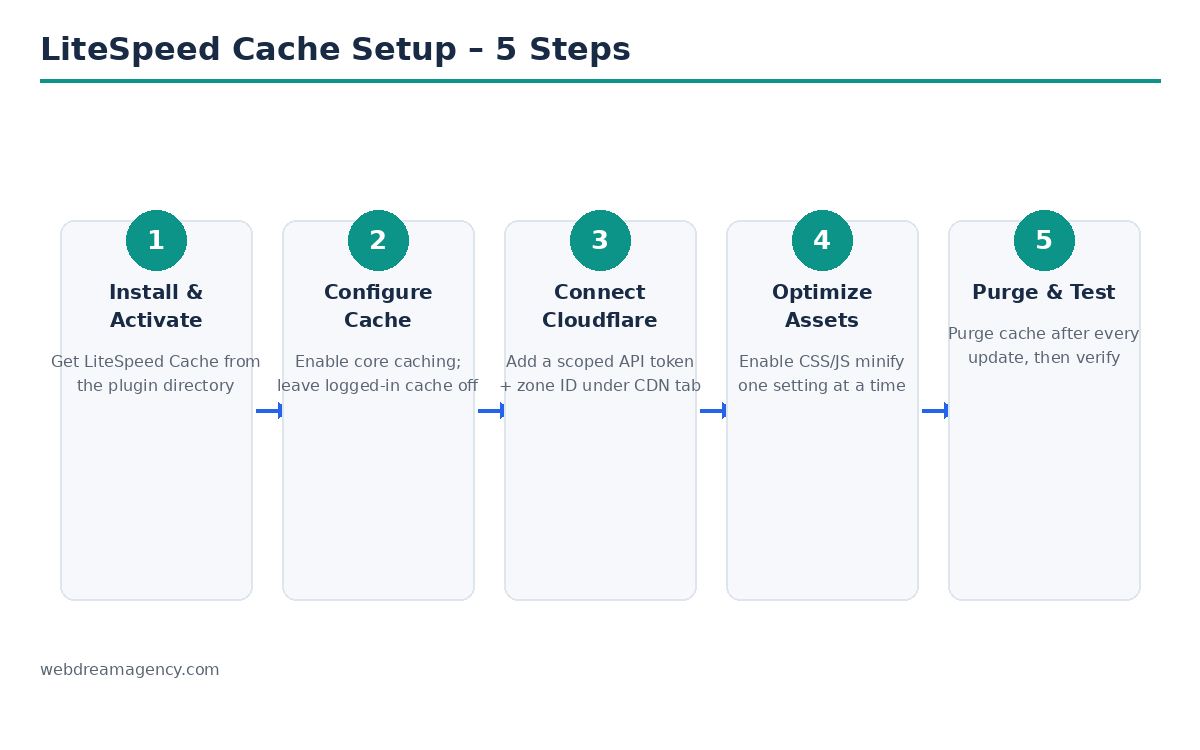
- First, install and activate LiteSpeed Cache from the WordPress plugin directory.
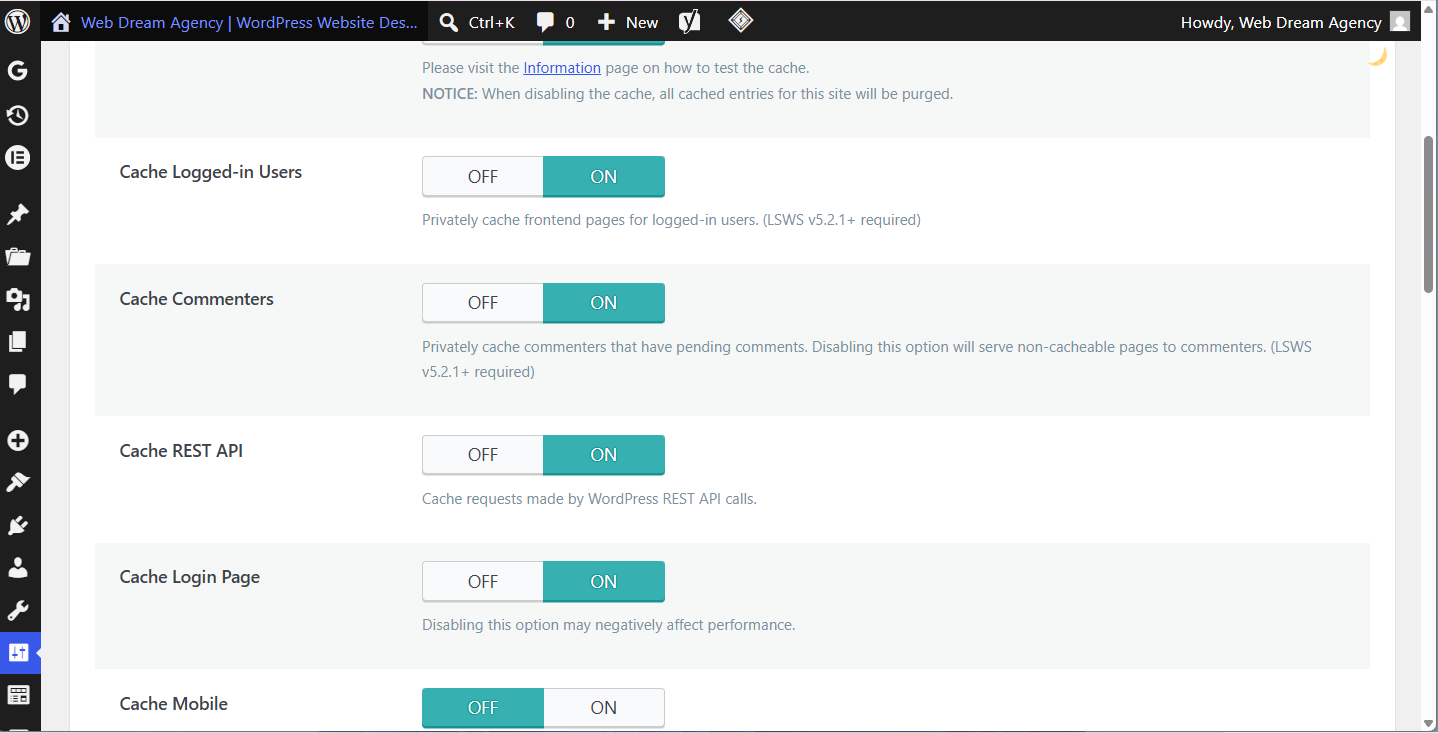
- Next, go to LiteSpeed Cache → Cache and enable “Cache Logged-in Users” only if needed for staging or preview; otherwise, leave it off for standard sites.
- Then, go to LiteSpeed Cache → CDN and add your Cloudflare API token (not the Global API Key — a scoped token) along with your domain’s zone ID.
- After that, go to LiteSpeed Cache → Page Optimization and enable CSS/JS minification one setting at a time, testing the site after each change, since aggressive minification can break page builders.
- Finally, purge the cache after every plugin, theme, or content update via LiteSpeed Cache → Toolbox → Purge All.
Common Errors and Fixes
- “No available Cloudflare zone” — this usually means your API token lacks Zone:Read permission, or the wrong zone ID is entered. Therefore, regenerate the token with the correct scope.
- Low cache hit rate in Cloudflare analytics — in this case, check that page rules or cache rules aren’t set to “Bypass Cache” for your domain, and confirm that the plugin’s edge cache toggle is actually enabled.
- Changes not showing after edits — typically, the page cache is serving a stale file. So, purge the cache manually after publishing.
- 508 Resource Limit errors — often, this is caused by cache/CDN misconfiguration creating redirect loops between the plugin and Cloudflare. Because of this, verify SSL mode is set to “Full” or “Full (strict),” not “Flexible.”
Frequently Asked Questions About WordPress Cache Plugins
Does a cache plugin improve Core Web Vitals?
Yes — it directly improves TTFB and can also improve Largest Contentful Paint (LCP), since the server delivers HTML faster. However, it does not fix Cumulative Layout Shift (CLS), because that’s a layout and image-dimension issue, unrelated to caching.
Can I use a cache plugin and a CDN together?
Absolutely — in fact, they solve different problems. Specifically, the plugin removes server-side rendering time, while the CDN removes network distance time. Therefore, using both together is the standard setup for production sites.
Is WP Rocket worth paying for over free plugins?
For non-technical site owners, generally yes, since it reduces setup errors and includes preloading and delayed JS execution that free plugins often lack or configure poorly.
Do I need object caching (Redis/Memcached) for a small business site?
Usually not. Instead, object caching matters most for high-traffic sites, WooCommerce stores, or membership sites with heavy logged-in activity — so a standard brochure or clinic website rarely needs it.
Will a cache plugin slow down my site during checkout or cart pages?
No, as long as it’s configured correctly. In fact, good plugins automatically exclude cart, checkout, and account pages from page caching, so dynamic content still updates properly.
Do I still need caching if I already use Cloudflare?
Yes, because Cloudflare mainly caches static assets and, optionally, the HTML at the edge — meanwhile, a WordPress cache plugin like LiteSpeed Cache or WP Rocket handles origin-level caching, which is a separate layer entirely.
Can a cache plugin break my website?
Occasionally, yes — for example, aggressive JS/CSS minification or combining files can break page builders like Elementor. Because of this, it’s best to enable optimization settings one at a time and test after each change.
How often should I purge the cache?
Ideally, after every content update, plugin update, or theme change — otherwise, visitors may see outdated versions of your pages.
Does caching help with mobile page speed specifically?
Yes, since mobile devices are more sensitive to server response time due to slower network conditions. Therefore, reducing TTFB through caching has an outsized impact on mobile Core Web Vitals scores.
What’s the difference between LiteSpeed Cache and WP Rocket?
LiteSpeed Cache caches at the web-server level, so it’s faster, but only if your host actually runs LiteSpeed. WP Rocket, on the other hand, works on any hosting stack and requires far less manual configuration, though it comes at a cost.
Should I use a cache plugin alongside a security plugin like Wordfence?
Yes, and they typically don’t conflict, since they operate on different layers. That said, always exclude the security plugin’s admin and login pages from caching to avoid outdated security tokens or nonces.
Need help choosing or configuring the best WordPress cache plugin? Web Dream Agency provides WordPress speed optimization, LiteSpeed Cache setup, WP Rocket configuration, Cloudflare integration, and ongoing website care plans.